
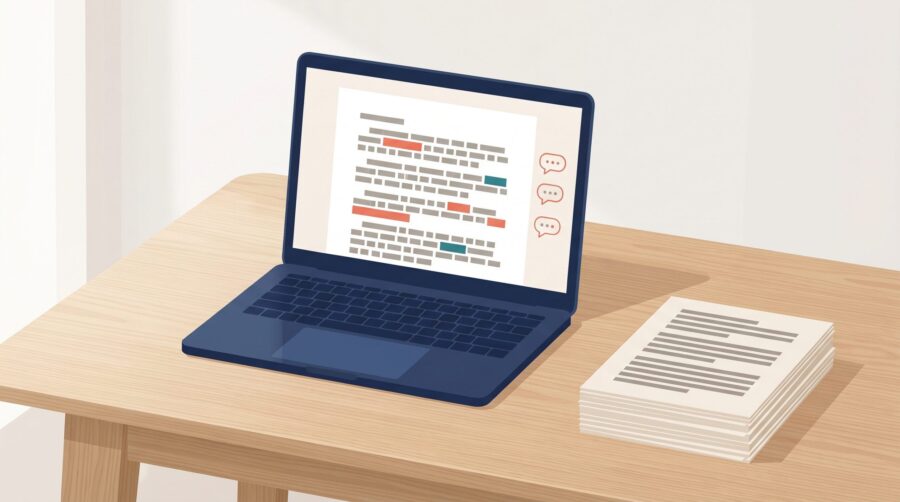
To handle Track Changes from your editor in Microsoft Word, open the Review tab, set the display to All Markup so every insertion, deletion, and comment is visible, then work through each change using the Accept or Reject buttons in the Changes group. Read and respond to your editor’s comments as you go. Once every revision is resolved, strip hidden metadata before moving to formatting or upload for publishing.
- How Do You Accept or Reject Track Changes Step by Step?
- How Do You Handle Your Editor’s Comments?
- What Do the Different Track Changes Colors Mean?
- What Do Different Editing Passes Look Like in Track Changes?
- Mac vs Windows: Where to Find Track Changes Controls
- How Do You Clean a Manuscript Before Uploading to KDP?
- How to Compare Two Versions of Your Manuscript
- Frequently Asked Questions
How Do You Accept or Reject Track Changes Step by Step?
There are two main approaches. The first is to work through each change in order, accepting or rejecting as you go. The second (and often more efficient) approach is to read through every change, reject only the ones you disagree with, and then accept all the remaining changes at the end in a single action. Both approaches use the same buttons in the Review tab’s Changes group, and both work the same way in Word 365, Word 2021, and Word for Mac; only the keyboard shortcuts differ slightly.
Start by setting the markup view. In the Review tab, find the Tracking group and set the dropdown to “All Markup.” This displays every insertion (coloured underlined text), deletion (coloured strikethrough), and formatting change visibly in the document. If you see clean-looking text with a vertical red bar in the left margin, you are in “Simple Markup” view; changes exist but are hidden behind that indicator line.
Navigate between changes using the Previous and Next buttons in the Changes group. For each change, you can click Accept and Move to Next or Reject and Move to Next. If you are using the second approach (reject only what you disagree with, then accept the rest), work through the entire document with Previous and Next, rejecting as needed, then finish with Accept All Changes in Document.
One useful tip while reviewing: you can switch between “All Markup” and “Simple Markup” views at any time. Simple Markup shows the document as it would read if all changes were accepted, which makes it easier to judge the overall impact of your editor’s work. Switch back to All Markup when you need to see exactly what was changed. You may also want to turn off Track Changes while you review (Ctrl+Shift+E on Windows, Cmd+Shift+E on Mac) so you can make your own edits as you go along without adding to the markup.
On Windows, Word 365 (Version 2205 and later) introduced Track Changes cards that show a pop-up preview of what the text will look like after you accept or reject. This feature, documented on the Microsoft Tech Community blog, eliminates guesswork on complex multi-word edits. Track Changes cards are not available on Mac or in Word 2021 and earlier; the Accept/Reject buttons still work identically, but you will not see the hover preview.
A pattern we see regularly: authors select “Accept All Changes” without reading through the edits first, then discover a week later that the editor restructured a passage they wanted to keep. Whichever approach you use, the key is to read every change before it becomes permanent. Accept All is safe only after you have scrolled through the entire document and confirmed nothing surprises you. Treat it as a final cleanup step, not a shortcut.
How Do You Handle Your Editor’s Comments?
Alongside tracked changes, your editor will typically leave comments in the margin. These serve a different purpose from the insertions and deletions you see in the text itself. Comments fall into two broad categories: explanations of changes the editor has already made (for example, “Changed to past tense here for consistency with the rest of the chapter” or “per CMoS style”) and questions where the editor needs your input before proceeding (for example, “This character’s name is spelled two different ways; which is correct?” or “This passage could mean two things; can you clarify your intent?”).
Comments appear as coloured balloons in the right margin when using “All Markup” view. Click on a comment to highlight the text it refers to. To reply, click the reply field below the original comment (in Word 365, this uses Modern Comments with a “Post” button or Ctrl+Enter to submit). Your response appears as a threaded reply beneath the editor’s original note.
Explanatory comments (where the editor is telling you why they made a change) usually need no action beyond reading them; they help you understand the reasoning so you can accept or reject the associated tracked change with confidence. Question comments require you to either reply with clarification, make the fix yourself, or note that you will handle it in a later pass.
Once a comment thread is resolved, you can mark it as “Resolved” in Word 365, which collapses it visually. Resolved comments are not deleted, however; they remain embedded in the file. You must explicitly delete all comments before uploading to KDP or sending the file for conversion (see the cleanup section below).
What Do the Different Track Changes Colors Mean?
Each reviewer in a Word document is automatically assigned a distinct colour. The first person to edit typically gets red; a second reviewer gets blue or purple; a third gets green. These colours identify who made each change, not what type of change it is.
The colour assignment is controlled by the “By author” setting in Review > Tracking > Change Tracking Options. According to Microsoft’s support documentation, these colours can shift when the document is reopened on a different computer or when another user opens it. The colour is tied to the position in Word’s internal author list, not permanently to a specific person’s name. This means your editor’s changes might appear red on their machine and blue on yours.
What does stay consistent is the author name displayed in each change balloon or tooltip. Hover over any tracked change to see who made it and when. If your manuscript went through multiple rounds (a developmental editor, then a copy editor), the author names tell you which pass each change belongs to, even if the colours have shifted.
For self-published authors who receive a manuscript back from a single freelance editor, colour is straightforward: your editor’s changes are one colour, and anything you type while Track Changes is on will appear in a different colour. The key distinction is insertions (underlined coloured text) versus deletions (strikethrough coloured text) versus formatting changes (noted in balloons in the right margin when using “All Markup” view).
What Do Different Editing Passes Look Like in Track Changes?
The density and type of markup you see depends on which level of editing was performed. A line edit, copy edit, and proofread each leave distinctive fingerprints in Track Changes; knowing what to expect prevents shock when you open a heavily marked manuscript.
A line edit (sometimes called a substantive or stylistic edit) produces the heaviest markup. Your editor is rewriting at the sentence level: restructuring paragraphs, tightening prose, eliminating redundancy, adjusting pacing and tone. Expect large blocks of strikethrough text replaced by new insertions, moved paragraphs, and lengthy margin comments explaining why a passage was restructured. According to Jane Friedman’s breakdown of editing types, line editing addresses creative content and language use rather than mechanical correctness. A line-edited manuscript can look alarming at first glance because so much text is marked; this is normal and does not mean your writing was poor.
A copy edit produces moderate markup. The focus is grammar, punctuation, spelling, consistency (character names, timeline, style sheet adherence), and sentence-level clarity. You will see shorter insertions and deletions (a comma added, a word replaced, a hyphen corrected) spread fairly evenly throughout the document. Comments are typically brief: “Inconsistent spelling; you used ‘grey’ on page 12 and ‘gray’ here” or “This name is spelled ‘Catherine’ in chapter 3 but ‘Katherine’ here.”
A proofread produces the lightest markup. This is the final quality check before the file goes to a formatter or printer. Changes are limited to typos, missed punctuation, inconsistent capitalisation, and formatting glitches. If your proofreader is returning heavy markup, either the copy edit was incomplete or the scope of work was mislabelled. The difference matters commercially: if you commissioned a proofread but received a copy edit’s volume of changes, that may signal a miscommunication about scope between you and your editor.
One important note: if your book has already been professionally typeset, or if you are formatting it yourself using software other than Word (Vellum, for example), proofreading is typically done on a PDF rather than a Word file. When you open a proofread PDF in Acrobat, the interface is not dramatically different; changes appear inline and are listed in a comments panel. The key difference is that you are not incorporating changes directly into the PDF itself. Instead, the corrections your proofreader marks need to be taken back into whatever formatting software produced the PDF, and a new PDF exported.
We commonly see tracked changes still active in the Word manuscripts we receive for formatting. If this happens, we can accept them all on the author’s behalf, but we will always check back before getting started in case any changes were left unresolved deliberately. The safest approach is to process all tracked changes yourself before sending the file (see the cleanup section below).
Mac vs Windows: Where to Find Track Changes Controls
Track Changes works the same way on both Mac and Windows; only the button positions in the ribbon and the keyboard shortcuts are different. Here is where to find each control on each platform.
On Windows (Word 365 and Word 2021), the Review tab presents the Tracking group with a prominent “Track Changes” button, the markup display dropdown (Simple Markup / All Markup / No Markup / Original), and the Show Markup filter. The Changes group sits to the right with Accept, Reject, Previous, and Next buttons. The keyboard shortcut to toggle Track Changes on or off is Ctrl+Shift+E.
On Mac (Word 365 for Mac), the Review tab layout is similar but not identical. The Track Changes toggle is in the same Tracking group, but some options that appear as dropdown menus on Windows appear as separate buttons on Mac. The keyboard shortcut to toggle Track Changes on Mac is Cmd+Shift+E (Command replaces Control for nearly all Word shortcuts on Mac). The Reviewing Pane (a vertical list of all changes) is accessed via View > Sidebar > Reviewing Pane on Mac, compared to Review > Reviewing Pane on Windows.
One practical difference: on Mac, the “Accept All Changes and Stop Tracking” option is inside the Accept button’s dropdown arrow. If you cannot find it, click the small arrow beneath the Accept button rather than the button face itself.
The underlying Track Changes XML format is the same across platforms, so a document edited on Windows opens with full fidelity on Mac and vice versa.
How Do You Clean a Manuscript Before Uploading to KDP?
Before uploading your manuscript to Amazon KDP, you must ensure that every tracked change has been accepted or rejected and that all hidden metadata has been stripped. Amazon KDP’s formatting guidelines explicitly require that Track Changes is turned off before manuscript upload. If you are publishing through IngramSpark, any revision markup left in the source Word file can produce unexpected artifacts during PDF export. Orphaned revision marks can also render as visible text during EPUB conversion. A “clean” file means the document contains only the final text with no revision history, no comments, no personal author metadata, and no hidden XML artifacts.
Step one: resolve all tracked changes. You can do this in two ways. The first is to reject the specific changes you do not want to keep, then go to Review > Accept > Accept All Changes and Stop Tracking to accept everything that remains. The second is to review each change individually with Previous and Next, accepting or rejecting as you go, until Word tells you “There aren’t any tracked changes in your document.” Either way, finish by confirming that Track Changes is turned off (the Track Changes button in the Tracking group should not be highlighted).
Step two: delete all comments. Go to Review > Delete > Delete All Comments in Document. Even resolved comments remain in the file until explicitly deleted; a resolved comment thread is still embedded in the .docx XML.
Step three: strip hidden metadata. On Windows, go to File > Info > Check for Issues > Inspect Document. Microsoft’s Document Inspector scans for comments, revisions, versions, annotations, document properties (author name, company name, file paths), custom XML, and hidden text. Select the categories you want to check (leave headers and footers unchecked if your book uses running heads or page numbers you want to keep) and click Inspect, then Remove All for each category that shows results. Always run Document Inspector on a copy of your file, not the original; some removals cannot be undone. On Mac, Document Inspector is not available. Instead, go to Tools > Protect Document and check the box to remove personal information on save. You can also review and edit document properties manually via File > Properties.
Step four: verify the file is truly clean. Toggle to “All Markup” view one final time and confirm the document looks identical to “No Markup” view. If any coloured text or balloons remain, changes were not fully resolved.
A common mistake we encounter: authors set the view to “No Markup” (which temporarily hides changes) and assume the file is clean. It is not. “No Markup” is a display setting, not a permanent action. When the file is reopened or viewed on another machine, all the hidden changes reappear. Only resolving every tracked change, deleting all comments, and stripping metadata (as described in the steps above) produces a genuinely clean file.
How to Compare Two Versions of Your Manuscript
Word’s Compare Documents feature creates a third document showing every difference between two files as tracked changes. This is useful when you want to see exactly what your editor changed without relying on Track Changes having been active during the edit (some editors work with tracking off and deliver a “clean” edited file).
To compare: go to Review > Compare > Compare Documents (the exact button label varies slightly between Windows and Mac). Select your original manuscript as the “Original document” and the edited version as the “Revised document.” Word generates a new comparison document with every difference marked as a tracked change, while leaving both source documents untouched.
One thing to be aware of: if your manuscript contains heavily formatted elements (tables, images, text boxes), the comparison can look confusing if you have not worked extensively with tracked changes, because it may show a large number of deletions, insertions, and movements. For most fiction and straightforward non-fiction manuscripts, the comparison is clean and easy to follow.
Frequently Asked Questions
Does hiding Track Changes with “No Markup” view permanently remove them?
No. Setting the display to “No Markup” only hides changes visually; the revision data remains embedded in the file. The changes will reappear when anyone reopens the document or switches the view back to “All Markup.” To permanently remove tracked changes, you need to review and resolve each one (accepting or rejecting), delete all comments, and strip residual metadata using Document Inspector on Windows or the Protect Document options on Mac.
Can I accept some changes and reject others in the same document?
Yes. Use the Next button in the Changes group to move through changes one at a time, clicking Accept for edits you agree with and Reject for those you want to revert. There is no requirement to accept or reject all changes uniformly; the feature is designed for selective review.
What happens if I upload a manuscript with Track Changes still active to KDP?
KDP’s conversion process may render the tracked changes as visible text in the published ebook, showing deleted text alongside inserted text. Amazon’s formatting guidelines explicitly require Track Changes to be turned off before upload. The safest approach is to resolve all tracked changes, delete all comments, and strip hidden metadata before exporting your upload file.
How do I reply to my editor’s comments in Word?
Click on the comment balloon in the margin, then click the reply field below the original comment (in Word 365, this uses Modern Comments with a “Post” button or Ctrl+Enter to submit). Type your response and it appears as a threaded reply. Once the issue is resolved, you can mark the entire thread as “Resolved,” which collapses it visually but does not delete it. Delete all comments (including resolved ones) before uploading to KDP, converting to PDF or ebook, or handing the file to a formatter.
Should I send my editor the manuscript with Track Changes already turned on?
Most freelance editors prefer to receive a clean file and turn on Track Changes themselves before beginning work. This ensures the revision history starts fresh with only the editor’s changes, rather than containing your prior self-editing history. If you have been self-editing with Track Changes active, accept all your own changes and strip metadata before sending the file out.
