
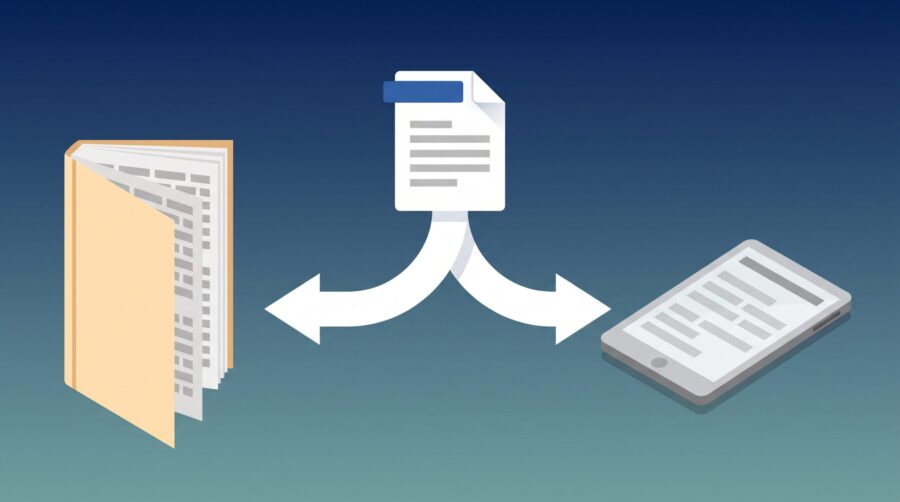
To produce both a paperback and ebook from one Word manuscript, maintain a single master file during the writing and editing phases, then split it into two format-specific copies for final formatting: one with print margins, headers, footers, and page numbers for your PDF, and one stripped of all fixed-layout elements for EPUB conversion.
- What Stays the Same Across Both Formats?
- What Print-Specific Formatting Does Your Paperback File Need?
- What Must You Remove or Change for the Ebook File?
- How Do Margin Specifications Differ Between KDP, IngramSpark, and Draft2Digital?
- Which Tools Export Both Print PDF and EPUB from One File?
- Step-by-Step Dual-Format Workflow from a Single Word File
- Frequently Asked Questions
What Stays the Same Across Both Formats?
The core manuscript content (your chapter text, heading hierarchy, and paragraph structure) remains identical in both the print and ebook versions. This is why starting from a single Word file makes sense: you write, revise, and proofread once, then fork the file only at the formatting stage.
Elements that carry over without changes include your chapter titles (formatted as Heading 1 in Word), body text paragraphs, block quotes, and any italics or bold emphasis. Your heading structure is especially important because both print layout tools and EPUB conversion tools rely on Word’s built-in heading styles to generate chapter breaks and a navigable table of contents.
Front matter (title page, copyright page, dedication) and back matter (author bio, also-by page) also transfer to both formats, though their visual presentation differs. In print, these pages have fixed positions and may include decorative elements. In a reflowable ebook, they become simple text sections that adapt to the reader’s screen.
What Print-Specific Formatting Does Your Paperback File Need?
Your print file requires fixed-layout elements that give the physical book a professional appearance and meet platform upload requirements. These elements do not exist in ebook files and must be added only to your print-specific copy.
Headers and footers are the most visible difference. Print books typically display the author name on the left-hand page header and the book title on the right, with page numbers centred or placed in the outer corners. Amazon KDP requires a minimum font size of 7 points for print interiors, though 11 to 12 point Times New Roman or Garamond is standard for comfortable reading.
Page margins must account for the gutter; the inner margin where pages meet the spine binding. For a standard 6×9 inch trim, a typical setup uses 0.75 inches for outside margins and 0.875 inches for the gutter. KDP’s gutter requirements scale with page count, ranging from 0.375 inches for thin books to 0.75 inches for books over 400 pages. Your print file also needs to be exported as a PDF with all fonts embedded; if you skip this step, KDP may reject the upload or substitute fonts that break your layout. Our guide on embedding fonts in your book PDF walks through that process in detail.
What Must You Remove or Change for the Ebook File?
The EPUB format does not support traditional pagination. Every page number, running header, and running footer is best deleted from the Word document before conversion. If left in, there’s a risk (depending on your conversion workflow) that these elements may appear as stray text floating in the middle of reflowable content, which looks broken on e-readers.
Left and right paragraph margins should be set to zero in the source file. The e-reader device controls the display margins based on user preferences; hardcoded margins in the source file stack on top of the device margins, creating awkwardly narrow text columns. For more on how reflowable ebooks handle layout, see our breakdown of reflowable vs. fixed-layout EPUB.
Fixed image sizes also need adjustment. Print interiors use images at 300 DPI with exact dimensions in inches. Ebook images should be sized in relative units (percentages) so they scale to the device screen. A full-page print illustration at 6×9 inches becomes a width:100% block in your EPUB, letting Kindle, Kobo, and Apple Books each render it appropriately.
Manual page breaks inserted for print chapter starts should be replaced with section breaks or heading-based breaks that EPUB converters recognise. Tab-based indents should use proper paragraph first-line indent settings rather than manual tabs, which many EPUB renderers ignore.

How Do Margin Specifications Differ Between KDP, IngramSpark, and Draft2Digital?
Each print-on-demand platform enforces its own margin minimums, and submitting a file that meets one platform’s specs does not guarantee acceptance on another. Here are the current requirements for the three major platforms:
| Specification | KDP | IngramSpark | Draft2Digital Print |
|---|---|---|---|
| Minimum outside margin (no bleed) | 0.25 in | 0.5 in | 0.5 in |
| Gutter (varies by page count) | 0.375–0.75 in | 0.5 in minimum | 0.5 in minimum |
| Print file format | Print-ready PDF | PDF/X-1a | Print-ready PDF |
| Colour space (interior) | RGB or CMYK | CMYK required | RGB or CMYK |
| Image resolution | 300 DPI recommended | 300 DPI required | 300 DPI recommended |
| Bleed (if images extend to edge) | 0.125 in | 0.125 in | 0.125 in |
| Ebook file format | EPUB 3 | EPUB 2 or 3 | EPUB (auto-generated) |
IngramSpark’s file creation guide specifies that all fonts must be embedded, images must be CMYK at 300 DPI, and the PDF must conform to the PDF/X-1a standard. KDP is more forgiving on colour space (it accepts RGB and converts internally) but enforces gutter minimums that scale with page count. If you plan to distribute through both platforms, format your print PDF to IngramSpark’s stricter specifications; a file that passes IngramSpark’s checks will almost always pass KDP’s.
For ebooks, all three platforms accept EPUB files. KDP specifically requires EPUB 3 for new uploads. Draft2Digital generates the EPUB for you from a Word upload through its free browser-based formatting tool, so authors using D2D can skip manual EPUB creation entirely.
Which Tools Export Both Print PDF and EPUB from One File?
Several tools can take a single manuscript and export both a print-ready PDF and a reflowable EPUB, eliminating the need to maintain two separate Word files. Each has distinct trade-offs in cost, platform support, and control.
Vellum (Mac only; $249.99 for print + ebook)
Vellum imports a Word document and lets you style it once, then export both a print-ready PDF and EPUB from the same project. It handles gutter margins, chapter openers, ornamental breaks, and front/back matter automatically. An ebook-only licence costs $199.99; the $249.99 Vellum Press licence adds print PDF export. The limitation is platform exclusivity: Vellum runs only on macOS, with no Windows or web version available.
Atticus (Mac and Windows; $147 one-time)
Atticus is a cross-platform desktop application that imports Word documents and exports EPUB, print-ready PDF, and DOCX from the same project file. At $147 as a one-time purchase, it costs less than Vellum and runs on both Mac and Windows. It offers built-in chapter templates, custom font support, and automatic table of contents generation for both formats.
Calibre (free, open source)
Calibre converts DOCX files to EPUB using your heading styles to define chapter breaks. It provides extensive control over CSS, metadata, and EPUB structure through its conversion settings. Calibre does not generate print-ready PDFs; it is an ebook-only tool. Authors using Calibre still need a separate workflow (Word’s PDF export or a tool like Adobe InDesign) for their print file.
Draft2Digital’s free formatting tool
Draft2Digital offers a free browser-based tool that converts a Word manuscript into both an EPUB file and a print-ready PDF. Authors can download these files and use them on any platform; distribution through D2D’s own channels is not required. The formatting options are more limited than Vellum or Atticus, but the zero-cost entry point makes it worth testing.
Step-by-Step Dual-Format Workflow from a Single Word File
Here is a practical workflow that starts with one Word manuscript and ends with both a print-ready PDF and a distribution-ready EPUB.
- Write and edit in a single master Word file. Use Word’s built-in Heading 1 for chapter titles, Heading 2 for sections, and Normal for body text. Avoid manual formatting (tabs for indents, manual spacing, inserted page numbers in the body). All structural formatting should come from styles.
- Finalise content completely before forking. Finish all edits, proofreading, and revisions in the master file. Any content change made after forking must be applied to both copies.
- Save two copies. Name them clearly:
BookTitle-PRINT.docxandBookTitle-EBOOK.docx. Keep the master file untouched as your canonical backup. - Format the print copy. Add running headers and footers, insert page numbers, set print margins (including gutter), adjust font size to 11–12 pt, and add any decorative chapter openers or ornamental breaks. Export as a PDF with fonts embedded.
- Format the ebook copy. Delete all headers, footers, and page numbers. Set left and right margins to zero. Replace manual page breaks with section breaks. Resize images to relative widths. Convert to EPUB using Calibre, Vellum, Atticus, or Draft2Digital’s tool.
- Validate both files. Upload the print PDF to your chosen platform’s previewer (KDP Print Previewer, IngramSpark’s review tool) to check margins, bleed, and font embedding. Run the EPUB through an EPUB validator to catch structural errors before uploading.
If you use Vellum, Atticus, or Draft2Digital’s formatting tool, steps 3 through 5 collapse into a single import-and-export process. You import the master Word file, configure settings for each output format within the tool, and export both files without maintaining separate Word copies.
Frequently Asked Questions
Can I use the same Word file for both formats without making a copy?
You can if you use a dedicated formatting tool like Vellum, Atticus, or Draft2Digital’s formatter. These tools import your Word file once and handle format-specific differences (margins, headers, pagination) internally. If you are formatting manually in Word, you need two separate copies because print and ebook require mutually exclusive settings.
Do I need to remove page numbers from my ebook file?
Yes. Ebook formats like EPUB do not support traditional pagination. If you leave page numbers in the source file, they appear as static text scattered through the reflowable content rather than functional page indicators. E-reader devices generate their own location markers based on the content length.
What happens if I submit a KDP-formatted PDF to IngramSpark?
It may be rejected. IngramSpark requires the PDF/X-1a standard with CMYK colour space and 300 DPI images, while KDP accepts RGB and does not enforce PDF/X-1a compliance. If you plan to distribute through both platforms, format to IngramSpark’s stricter requirements first.
Is Calibre good enough for professional ebook formatting?
Calibre produces clean, valid EPUB files and offers extensive control over conversion settings. For text-heavy books (novels, memoirs, most non-fiction), Calibre’s output is professional quality. For image-heavy or design-intensive books, a tool with more visual layout control like Vellum or Atticus may produce better results.
How do I handle images that appear in both the print and ebook versions?
Include images at 300 DPI in your print file with exact dimensions in inches. For the ebook version, the same image files work, but set their display size using relative widths (percentage-based) rather than fixed dimensions. Most EPUB conversion tools handle this resize automatically when you import the Word file.
