
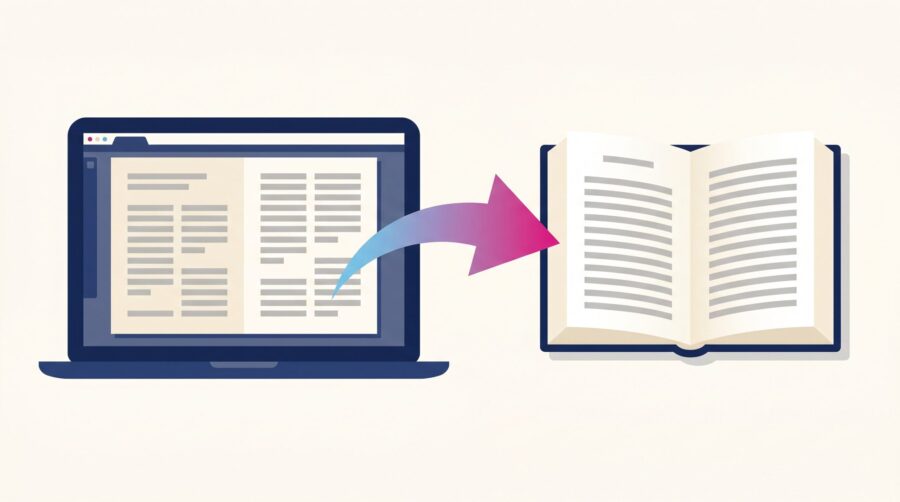
Affinity can export print-ready book PDFs, but the default settings will get your file rejected by most print-on-demand platforms. You need to choose the right PDF standard (PDF/X-1a or PDF/X-3), embed all fonts, set your bleed to 0.125 inches on three edges, convert colours to CMYK, and disable printer marks. This guide walks through each setting for KDP, IngramSpark, and Draft2Digital Print.
Contents
- What Does “Print-Ready PDF” Actually Mean?
- Which PDF Standard Should You Use: PDF/X-1a, PDF/X-3, or PDF/X-4?
- What Does Each Print-on-Demand Platform Require?
- How to Set Up the Export in Affinity Publisher Step by Step
- How to Handle Colour Profiles and Ink Coverage Limits
- How Do You Check That Your PDF Is Correct Before Uploading?
- Frequently Asked Questions
What Does “Print-Ready PDF” Actually Mean?
A print-ready PDF is a file that a printing press (or a print-on-demand machine) can reproduce exactly as you intended, with no missing fonts, no colour surprises, and no content cut off at the edges. Everything a printer needs is baked into the file itself, so nothing depends on your computer’s settings or installed software.
Three things make a PDF “print-ready.” First, all fonts are embedded inside the file, so the printer does not need to have your chosen typeface installed. Second, colours are handled in a print-safe way. Most print-on-demand platforms (including IngramSpark) require CMYK colour (cyan, magenta, yellow, and black; the four ink colours used in commercial printing). Amazon KDP is the exception: it accepts RGB images and handles the CMYK conversion itself, which can sometimes preserve colour fidelity better than converting upfront. PDF/X-1a enforces CMYK; PDF/X-3 allows RGB, which is one reason KDP accepts both standards. Third, the file supports bleed: a small strip of extra content beyond the page edge that gets trimmed off, ensuring no white slivers appear if the cut is slightly off. Bleed is only required when your interior has content that extends to the page edge (full-page images, coloured backgrounds, decorative borders). A text-only book with everything within the safe margins does not need bleed, though including it does no harm.
Regular PDFs do not guarantee any of these things. That is why every print-on-demand platform asks for a specific PDF/X standard: an international specification (maintained by the International Organization for Standardization) that enforces these rules automatically. Affinity supports exporting to several PDF/X standards directly from its export dialog. The trick is knowing which standard your platform needs and which settings to adjust.
Which PDF Standard Should You Use: PDF/X-1a, PDF/X-3, or PDF/X-4?
PDF/X-1a is the safest choice for print-on-demand books. It is the most restrictive standard: it requires all fonts to be embedded, forces all colours into CMYK (no RGB allowed), flattens any transparency effects into solid artwork, and strips out features that could cause printing problems. Because it leaves the printer with nothing to interpret, it produces the most predictable results. Both Amazon KDP and IngramSpark list PDF/X-1a as their preferred or required format.
One technical nuance worth knowing: PDF/X-1a has two versions. The older PDF/X-1a:2001 and the newer PDF/X-1a:2003. IngramSpark’s file creation guide specifically lists PDF/X-1a:2001 as their requirement. Affinity, however, exports PDF/X-1a:2003 (not 2001). In practice, the 2003 version is backward-compatible with workflows that accept 2001; the differences are minor technical refinements rather than structural changes. Authors regularly upload Affinity’s PDF/X-1a:2003 exports to IngramSpark without issues. But if IngramSpark’s automated checker ever flags your file, this version difference is the first thing to investigate.
PDF/X-3 allows everything PDF/X-1a does, plus it permits colours defined in RGB or in device-independent colour spaces (like Lab colour). This gives you more flexibility if your interior contains colour photographs that you want to keep in a wider colour range. IngramSpark also accepts PDF/X-3:2002 files. KDP accepts PDF/X-3 as well. For most black-and-white book interiors, PDF/X-3 offers no advantage over PDF/X-1a; the extra colour flexibility only matters for colour interiors.
PDF/X-4 is the most modern standard. It supports transparency (so drop shadows and feathered edges stay “live” rather than being flattened), layers, and modern colour management. Affinity can export PDF/X-4, and it produces smaller files when your layout uses transparency effects. However, neither KDP nor IngramSpark officially lists PDF/X-4 as an accepted format. Some authors have uploaded PDF/X-4 files successfully, but using an unlisted format means you are relying on the platform’s tolerance rather than its documented support. For book interiors, the practical recommendation is to stick with PDF/X-1a (or PDF/X-3 for colour work) and avoid PDF/X-4 until the major print-on-demand platforms explicitly endorse it.
What Does Each Print-on-Demand Platform Require?
Each platform publishes its own PDF specifications. Here is what the three major English-language print-on-demand services require, as of 2026:
| Requirement | Amazon KDP | IngramSpark | Draft2Digital Print |
|---|---|---|---|
| PDF standard | PDF/X-1a preferred; also accepts PDF/X-3 | PDF/X-1a:2001 or PDF/X-3:2002 | Print-ready PDF (no specific standard named) |
| Colour space (interior) | RGB or CMYK accepted for colour interiors; greyscale for B&W | CMYK required for colour; greyscale for B&W | Greyscale for B&W interiors |
| Bleed | 0.125 in (3.2 mm) on top, bottom, and outside edge if bleed elements exist; no bleed on spine edge | 0.125 in (3.2 mm) on top, bottom, and outside edge; no bleed on spine edge | 0.125 in (3.2 mm) on three outer edges |
| Image resolution | 300 DPI minimum | 300 DPI minimum | 300 DPI recommended |
| Font embedding | All fonts must be embedded | All fonts must be embedded | All fonts must be embedded |
| Total Ink Coverage limit | Not specified (no hard limit published) | 240% maximum | Not specified |
| Printer marks | No crop marks, no registration marks | No crop marks, no registration marks | No crop marks, no registration marks |
| ICC profiles | Strips ICC profiles during processing | Advises against embedding ICC profiles | No specific guidance published |
| Page count range | 24–828 pages (varies by trim size) | 18–1,050 pages (varies by binding) | 64–740 pages |
The most important takeaway from this table: all three platforms agree on embedded fonts, 300 DPI images, 0.125-inch bleed on three edges, and no printer marks. Where they differ is colour space handling and the Total Ink Coverage limit (more on that below). If you are publishing to multiple platforms from the same Affinity file, target IngramSpark’s stricter requirements: PDF/X-1a, CMYK, 240% ink limit. A file that passes IngramSpark’s checks will also pass KDP’s and Draft2Digital Print’s.
How to Set Up the Export in Affinity Publisher Step by Step
Open your completed book file in Affinity (formerly Affinity Publisher; the page layout tool is now the “layout” workspace in the free Affinity app by Canva) and go to File > Export (or press Ctrl+Shift+E on Windows, Cmd+Shift+E on Mac). Here is what to set on each tab of the export dialog:
1. Choose the PDF preset. In the export dialog, select PDF (for print) as the file type. Under “PDF preset,” choose PDF/X-1a:2003 for black-and-white interiors or PDF/X-3 for colour interiors. This locks in font embedding and colour conversion automatically.
2. Set the page range. Under “Pages,” change the dropdown from “All Spreads” to “All Pages.” This is a common mistake: Affinity defaults to exporting facing-page spreads as single wide images, which print-on-demand platforms cannot use. Each page must export as a separate, single page. If your document uses facing pages, you may need to uncheck “Spread” and ensure left and right pages export individually.
3. Configure bleed. Check “Include bleed” and verify the bleed is set to 0.125 inches (3.175 mm) on the top, bottom, and outside edges. The spine (inside) edge should have zero bleed. If you set up bleed when you created the document, these values should already be correct. If not, go back to File > Document Setup and add the bleed there before exporting.
4. Disable all printer marks. In the “Marks” or “More” section of the export dialog, make sure crop marks, registration marks, colour bars, and page information are all unchecked. Print-on-demand platforms use the bleed area and trim size you specified; adding your own marks confuses their automated systems and can cause rejection.
5. Set colour space. For PDF/X-1a exports, Affinity automatically converts everything to CMYK. Verify the colour profile in the “Colour” section: U.S. Web Coated (SWOP) v2 is the standard profile for North American print-on-demand. For UK or European printing, Fogra39 is common. If you are unsure, U.S. Web Coated (SWOP) v2 is the safest default for KDP and IngramSpark.
6. Verify image downsampling. In the export settings, check that raster image resolution is set to 300 DPI or higher. Affinity usually defaults to this when you select a PDF/X preset, but confirm it has not been changed. Images below 300 DPI can appear blurry in print, especially fine detail like maps or diagrams.
7. Export and review the filename. Click “Export” and save the file with a descriptive name (e.g., my-book-title-interior-pdfx1a.pdf). Avoid spaces and special characters in the filename; some upload systems handle them unpredictably.
How to Handle Colour Profiles and Ink Coverage Limits
Colour management is where Affinity exports most often go wrong for print-on-demand, even when everything else is set correctly. Two issues come up repeatedly: the wrong black value and exceeding the Total Ink Coverage (TIC) limit.
Total Ink Coverage is the sum of all four CMYK ink percentages at any single point on the page. For example, if a dark area uses C60 + M40 + Y40 + K100, the TIC at that point is 240%. IngramSpark enforces a hard ceiling of 240% TIC. We could find no ink limit in KDP’s published help pages.
The problem: Affinity’s default “rich black” (the black it uses for large solid areas) is approximately C72 M68 Y67 K88, which totals 295% TIC. This exceeds IngramSpark’s 240% limit. If your interior has solid black backgrounds, full-page black dividers, or heavy black graphics, those areas will be flagged or rejected.
The fix: for any large black area, use a controlled rich black of C60 M40 Y40 K100 (total: 240%, right at IngramSpark’s limit) or a lighter mix like C40 M30 Y30 K100 (total: 200%, safely under the limit). For body text, use K100 only (pure black, 100% TIC) with zero CMY values. Body text rendered in rich black looks fuzzy because the four ink plates can misalign slightly; pure black prints from a single plate and stays crisp.
On colour profiles: both KDP and IngramSpark process your file through their own colour management systems. KDP strips embedded ICC profiles during processing. IngramSpark advises against embedding ICC profiles in your PDF. The practical advice is to assign the correct profile in Affinity’s export settings (U.S. Web Coated SWOP v2 for most cases) so the CMYK conversion happens correctly, but do not rely on the embedded profile surviving the platform’s processing pipeline.
How Do You Check That Your PDF Is Correct Before Uploading?
Exporting the PDF is only half the job. Before uploading to any platform, verify the file meets specifications. You do not need Adobe Acrobat for this; several free or low-cost tools will do.
Check fonts are embedded. Open the PDF in any PDF reader that shows document properties. In Adobe Acrobat Reader (free), go to File > Properties > Fonts. Every font should say “Embedded” or “Embedded Subset.” If any font says “Not Embedded,” go back to Affinity and check the font licence allows embedding. For a detailed walkthrough, see how to embed fonts in a book PDF.
Check page dimensions and bleed. In Acrobat Reader, go to File > Properties > Description and check the page size. For a 6 × 9 inch book with 0.125-inch bleed on three sides, each page should measure 6.125 × 9.25 inches (width gains 0.125 on the outside edge; height gains 0.125 top and bottom). If the page size matches your trim size exactly, bleed was not included.
Check Total Ink Coverage (if targeting IngramSpark). The free tool Ghostscript can analyse TIC via command line. Alternatively, some formatting professionals offer pre-flight checks as part of their service. TIC only matters for colour interiors or pages with heavy black graphics; pure black text on white paper (K100 = 100% TIC) is never a problem.
Do a visual spot check. Scroll through every page looking for missing images, shifted text, content cut off at the bleed edge, and unexpected blank pages. This manual pass catches layout problems that automated checks miss.
Whether you are publishing on one platform or all three, the export workflow is the same: choose PDF/X-1a for maximum compatibility, set 0.125-inch bleed on three edges, confirm fonts are embedded, keep body text in pure black (K100), and verify the file before uploading. Affinity gives you all the tools to produce a print-ready PDF that meets professional standards; the key is knowing which settings to change from the defaults.
Frequently Asked Questions
Can I use Adobe .joboptions files in Affinity Publisher?
No. Adobe .joboptions files are configuration presets built for Adobe Distiller and InDesign’s PDF export engine. Affinity uses its own export system and cannot import .joboptions files. If you are migrating from an Adobe workflow, you will need to recreate your export settings manually in Affinity’s export dialog using the steps described above. The settings themselves (PDF/X standard, bleed dimensions, colour profile, DPI) translate directly; it is only the preset file format that is incompatible.
Does Affinity Publisher support PDF/X-1a export?
Yes, but with a version nuance. Affinity exports PDF/X-1a:2003, not the older PDF/X-1a:2001. The 2003 version is a minor revision of the same standard and is backward-compatible with most printing workflows. Both KDP and IngramSpark accept Affinity’s PDF/X-1a:2003 output in practice, even though IngramSpark’s documentation specifically references the 2001 version.
What happens if I export my book as regular PDF instead of PDF/X?
A regular PDF does not guarantee font embedding, does not enforce CMYK colour conversion, and may include features (like transparency or JavaScript) that confuse print workflows. Your file might upload successfully but print with substituted fonts, shifted colours, or missing elements. Using a PDF/X standard eliminates these risks by locking the file to print-safe specifications.
Can I use Affinity Publisher instead of Adobe InDesign for professional book formatting?
Yes. Affinity handles master pages, paragraph and character styles, table of contents generation, PDF/X export, and CMYK colour management. It lacks some of InDesign’s advanced features (like GREP-based find/replace, data merge for catalogues, and native EPUB export), but for standard book interiors (fiction, nonfiction, poetry), it is fully capable. Since Canva acquired Serif in 2024 and relaunched the app as Affinity (free, no subscription) in late 2025, the cost barrier has disappeared entirely; indie authors who format their own books can access professional page layout tools at no cost.
Should I export my book cover from Affinity Publisher the same way?
The same PDF/X standard and bleed principles apply, but a book cover has additional requirements. Your cover PDF is a single page that includes the front cover, spine, and back cover as one continuous image, with 0.125-inch bleed on all four outer edges. You will need your printer’s cover template (which calculates the spine width based on page count and paper stock) to set the exact dimensions. KDP and IngramSpark both provide cover template calculators on their websites. Export the cover as a separate PDF from your interior file.
