
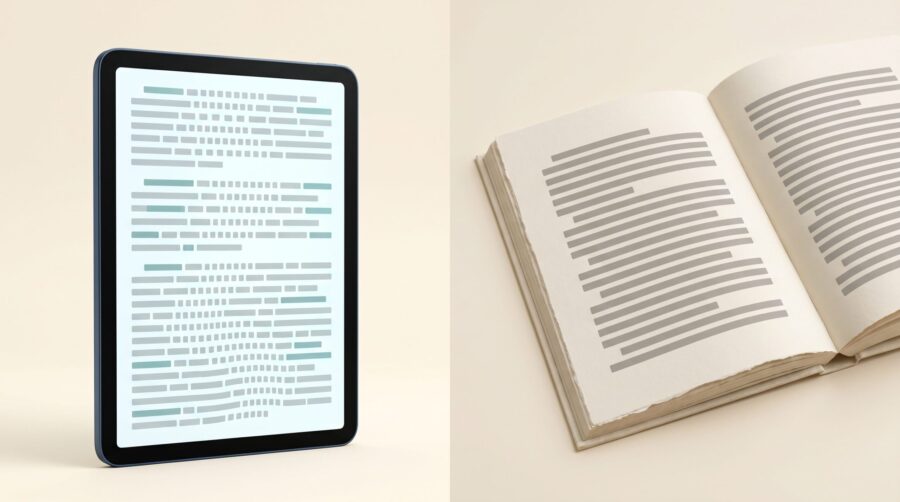
The difference between formatting an ebook and a paperback comes down to one thing: an ebook reflows to fit any screen, while a paperback is locked to a fixed printed page. In practice that means you edit your manuscript once, then build two separate files from it: an EPUB for the ebook, which is the file type every major ebook store takes, and a print-ready PDF for the paperback.
- What Does the Whole Process Look Like, Start to Finish?
- Why Do You Need Two Separate Files?
- Which Formatting Choices Carry Over, and Which Are Rebuilt?
- Which Tools Can Make Both an Ebook and a Paperback?
- Which Settings Exist Only in the Print File?
- How Do Images Differ Between an Ebook and a Paperback?
- Frequently Asked Questions
What Does the Whole Process Look Like, Start to Finish?
An ebook and a paperback are two separate files built from one manuscript, and the order you build them in is what keeps the two editions saying the same thing. Here is the whole sequence at a glance, for an author publishing both, before we explain why each step matters.
- Finish the editing first. Get the words final before you format anything, so you are not making the same correction in two separate files later. The final proofread comes later still, on the laid-out pages.
- Format with styles, not manual spacing. Tag chapter titles as headings and body text with a single paragraph style. Avoid using tabs, extra blank lines, or the space bar to push things into position.
- Decide how you will make the two files, and pick your trim size. Trim size is the finished page size of the printed book, such as 6″ × 9″, and it has to be settled before the pages are laid out. Some tools produce both a print PDF and an ebook from one project; others make only the print file, so you add a separate step for the ebook. The tools section below covers this.
- Build the paperback as a fixed print PDF. Set your margins, allowing extra room at the binding edge for longer books, and add bleed (extra artwork running past the page edge) only if images or colour reach the edge of the page.
- Build the ebook as a reflowable EPUB. Let the text reflow, then open it on a phone or e-reader app to see how it actually behaves.
- Check before you publish. Validate the EPUB and read a print proof, so you catch problems on screen rather than in a printed box of books.
Step one earns its place at the top. Once a manuscript has been laid out, a late correction has to be carried back into the layout and both files output again; leave editing unfinished and you will be doing that repeatedly, which is where two editions drift out of sync.
Why Do You Need Two Separate Files?
An ebook and a paperback are built on opposite ideas about where words sit. An ebook is “reflowable”, meaning the text pours into whatever screen it lands on and rearranges itself when the reader changes their settings, such as text size. A paperback is “fixed”, meaning every word, image and margin is pinned to an exact spot on a page that never moves.
The two editions use different file types for this reason. The ebook is an EPUB; the paperback is a print-ready PDF. EPUB is built from the same building blocks as a web page (HTML and CSS), which is why, according to the W3C’s EPUB 3 overview, it “reflows to fit the available screen space” and lets readers change font size and spacing without breaking the layout. A PDF does the reverse and freezes the page exactly as designed.
This is also why an ebook may not keep the exact fonts you chose. A reflowable file leaves much of the type up to the reader’s device, while a print PDF embeds the font so it prints exactly as set. The practical takeaway: save any distinctive display font for the print edition, and pick a dependable, widely available body font that works in both, as we cover in choosing the right font for your book interior. If you want the deeper version of the reflowable-versus-fixed idea, we go further in reflowable vs fixed-layout EPUB.
Two files does not have to mean two projects. At ebookpbook the two editions come out of a single source file: the print layout is perfected first in InDesign, and the ebook is exported from that same file with the print-specific furniture and page-level adjustments stripped out. The reason to mention it here is not the software but the principle. When one file is the source of both, a correction is typed in one place and both editions are output again from it, rather than being applied separately to two files that then have to be compared. Whichever tool you use, that is the arrangement worth aiming at.
Which Formatting Choices Carry Over, and Which Are Rebuilt?
The words of your book carry over from one edition to the other; the page design mostly does not. Your text, chapter order, headings and front and back matter (the title page, copyright page, dedication and anything after the last chapter) stay the same in both. What gets rebuilt is everything that controls how a page physically looks.
| Element | Paperback (fixed PDF) | Ebook (reflowable EPUB) |
|---|---|---|
| Text, chapter order, front and back matter | Same in both | Same in both |
| Heading styles | Used to start each chapter on a fresh page | Used to build the clickable contents list |
| Page size | Fixed trim size, chosen before formatting | No page size; the screen decides |
| Margins and gutter | Platform minimums all round; the binding-edge gutter grows with page count | Not applicable |
| Bleed | Only if artwork runs off the page edge | Never applies |
| Page numbers and running heads (the book or chapter title repeated at the top of each page) | Usual in most books | No fixed pages, so neither exists |
| Table of contents | Lists fixed page numbers | Links directly to each chapter |
| Fonts | Embedded in the PDF, as printers require | Usually left to the reader’s device |
| Images | High resolution for ink on paper | Screen-sized, to keep the file light |
| Cover file | Covers back, spine and front as one continuous surface, sized to page count | A single flat front-cover image |
The cover row deserves a word. A printed book has a physical back, spine and front, so the artwork has to run across all three as one continuous surface; the spine is as wide as the book is thick, which depends on the page count and the paper it is printed on. Print-on-demand platforms, which print each copy as it is ordered, usually take that as a single wrap file; a hardcover with a dust jacket adds flaps and a separate case. An ebook cover has none of this: it is the front alone, as a flat image. The same design can serve both, but they are different files, and the print one cannot be finished until the page count is settled.
This is also why styles matter so much. A style is a named set of formatting instructions you apply to text, rather than formatting each line by hand. When chapter titles carry a real heading style rather than being enlarged bold text, the ebook build can create a working contents list from them and the print build can start each chapter on a fresh page, both from the same source. Text pushed into position with tabs and blank lines can look right in print and then scatter once an ebook reflows it, because none of those manual nudges survive a screen that resizes.
Which Tools Can Make Both an Ebook and a Paperback?
Whether you need one tool or two depends on what your software can export. Dedicated book-formatting programs are built to produce both editions from a single project, while general word processors handle print well but need extra help with the ebook.
- Tools that make both editions: Adobe InDesign, Vellum and Atticus can each output a print-ready PDF and a reflowable EPUB from one project. InDesign, which is what we use here, exports EPUB from the same document that produces the print PDF, and Adobe documents that export in its EPUB export guide. It can produce two kinds of EPUB: the reflowable one described here, and a fixed-layout EPUB, which keeps a designed page intact on screen and suits picture books and other illustration-led work rather than ordinary text. With these you format once and export twice. Vellum runs on macOS only, so for authors on Windows the choice narrows before anything else is considered.
- Microsoft Word: Word produces a perfectly good print-ready PDF, meaning one with the fonts carried inside it and the pages at their final size. Its Save As list offers no EPUB, so for the ebook you add a separate step: either a conversion tool or a dedicated formatting program that takes your Word file and builds the EPUB from it.
- Google Docs: Google Docs can download a basic EPUB directly, through File then Download then EPUB Publication, as well as a PDF. The feature was announced in a Google Workspace update in March 2016 and remains in the menu. What comes out is plain: it carries your headings and paragraphs, not a designed interior, so a book with decorated chapter openers, oversized opening capitals or images placed in a particular spot will need more control than Docs offers.
The practical point for a first-timer is to pick your route before you start formatting, not after. Choosing a tool that exports both editions saves you from rebuilding the whole book in a second program; choosing Word or Google Docs is fine too, as long as you plan for the extra ebook step from the start.
Which Settings Exist Only in the Print File?
A print book is manufactured at a chosen page size, so the paperback build has to account for a physical sheet of paper that the ebook build knows nothing about. Five settings follow from that, and none of them has an equivalent in a reflowable ebook.
- Trim size: the finished page size, settled before the pages are laid out. (More on choosing one in choosing a trim size for your book.)
- Margins and gutter: the white space around the text, plus extra room at the binding edge. As KDP’s page on trim size, bleed and margins puts it, “every page has three outside margins (top, bottom, and side) and one inside margin (also called the gutter)”. A good working minimum for the three outside margins is 0.5″ (13 mm): IngramSpark’s File Creation Guide (the edition stamped 8.24.26) recommends “a minimum of 0.5″ (13 mm) margin on all sides”, and it does not raise that figure for longer books. The gutter is the part that grows with length, because the thicker the book the more of the inside margin curves away into the spine, and KDP publishes a table of gutter minimums by page count for exactly that reason. Its page also explains why the order of work matters: margin size “depends on page count and on whether you have elements that bleed”, so settle the trim size, then the page count follows from the layout, and the gutter follows from that. Take the figure from the platform you will upload to rather than from a general rule.
- Bleed: the extra artwork from step 4, extended past the page edge so that when the printed sheet is cut there is no white sliver left at the margin. It goes on three edges only and never on the binding edge, and KDP and IngramSpark both state it in the same terms. KDP: “all pages are trimmed to the selected trim size by cutting 0.125″ (3.2 mm) from the top, bottom, and outside edges”. IngramSpark: bleed is added “to the three trim edges (top, bottom, outside)”, with “please do not add bleed to the bind (gutter) edge as this will cause incorrect positioning”, and its guide notes that the bind side is not trimmed at all. So with 0.125″ of bleed a 6″ × 9″ book is built as a 6.125″ × 9.25″ page: 0.125″ added to the outside edge, and 0.125″ each to top and bottom. A novel with everything inside the margins needs no bleed at all.
- Embedded fonts: a print PDF has to carry a copy of each typeface inside the file, so the printer reproduces it exactly rather than substituting whatever it has. IngramSpark’s guide states the requirement in capitals: “ALL FONTS must be embedded in all PDF files.” Export settings usually handle it, but it is worth confirming before you upload, because a missing font is invisible on your own screen, where the typeface is installed. Ebooks can embed fonts too, but they are not obliged to, and a reflowable EPUB normally leaves the typeface to the reader’s device.
- Page numbers and running heads: usual in a printed book, and meaningless in a reflowable ebook, where the page changes every time the reader resizes the text.
The contents page splits along the same line, for the same reason. A print contents page lists fixed page numbers; an ebook contents list links straight to each chapter, because a reflowable ebook has no stable pages to number. If your ebook seems to have lost its page numbers in conversion, it never had them to begin with.
How Do Images Differ Between an Ebook and a Paperback?
Print images are made for ink on paper, while ebook images are made for screens and small file sizes. For a paperback, images need enough resolution to print sharply: KDP recommends a minimum of 300 DPI (dots per inch, a measure of how much detail the image holds) for interior images, placed at their intended printed size rather than scaled up, and flattened to a single layer. There is a limit at the other end too, which the same page notes: there is no set maximum resolution, but “images with excessively high resolutions may result in files timing out during upload”.
Colour handling is where these two platforms genuinely differ, and it is worth knowing which one you are preparing for. IngramSpark’s File Creation Guide requires images in interiors and covers to be supplied in CMYK, the four-ink colour system printing presses use. KDP accepts images in RGB, the format a screen and a camera produce, and converts them to CMYK itself at its end. Neither approach is the general rule for print, and other platforms set their own; prepare the file for the one you are uploading to.
An ebook treats images more like web images. What matters on a screen is the pixel dimensions of the image against the size of the reading area, not the print resolution stored inside it, so a file prepared for a press carries far more data than a reading app can show. The extra weight makes the book slower to download and, on some stores, more expensive to deliver. In practice the same photo often wants two versions: the high-resolution copy placed in the print PDF, and a lighter, screen-sized copy for the EPUB.
Formatting an ebook and a paperback are two related but separate jobs, and the cleanest way to think about it is one finished manuscript, two builds. Finish the editing, format with proper styles, produce a reflowable EPUB that adapts to readers and a fixed PDF that prints exactly as designed, and proofread the laid-out pages before either goes up. Once you know which of the two files each setting belongs to, the process stops feeling like guesswork.
Frequently Asked Questions
Can I use the same file for my ebook and paperback?
No. The two editions are different builds: a reflowable EPUB for the ebook and a fixed print-ready PDF for the paperback. Uploading a print PDF as an ebook gives readers fixed pages they cannot resize; exporting an ebook file as your print interior gives you pages with no controlled size or margins. One source manuscript feeding both builds is a different thing, and it is the arrangement you want.
Can Microsoft Word make an ebook?
Word can save a print-ready PDF but has no built-in EPUB export, so you make the ebook with a separate conversion tool or a dedicated formatting program. Google Docs, by contrast, can download a basic EPUB directly from its File menu.
Does bleed go on all four edges of a print page?
No. Bleed goes on three edges only: top, bottom and outside. The binding edge gets none, because that edge is not trimmed, and adding bleed there shifts the page contents out of position. KDP and IngramSpark both state this in their file guidance, so with 0.125″ of bleed a 6″ × 9″ book is built as a 6.125″ × 9.25″ page.
Should I format the ebook or the paperback first?
Finish all editing first, then work from that one final manuscript. Which edition you lay out first is a practical choice rather than a rule; building the print edition first and exporting the ebook from the same source is one common arrangement, because the print layout is the more constrained of the two. Proofreading comes after the pages are laid out.
Why does my ebook look different on every device?
That is reflowable text working as intended. Each reading app, and each reader’s own settings for font size and typeface, change how the text lands on screen. An ebook is designed to adapt rather than to look identical everywhere.
Do ebooks have page numbers like print books?
No. A reflowable ebook has no fixed pages, so it has no printed page numbers. Its table of contents links directly to each chapter instead of pointing to a page number, and reading apps may show their own progress indicators.
