
To set up a print cover, finish your interior first, then download a Barnes & Noble Press cover template built from six details: page count, page size, interior print colour, cover format, cover finish, and paper. Design the cover at the template’s full size, keep essential text clear of the edges, embed your fonts, and upload the PDF.
- Why Is the Cover File Bigger Than Your Book?
- How Do Paperback, Printed Case, and Dust Jacket Cover Files Differ?
- How Does the Barnes & Noble Press Cover Template Set Your Spine Width?
- What Specs Must the Cover PDF Meet to Pass B&N’s File Checks?
- Building the Cover in InDesign, Affinity Publisher, or Canva
- Can You Reuse Your KDP Cover File on Barnes & Noble Press?
- Frequently Asked Questions
Why Is the Cover File Bigger Than Your Book?
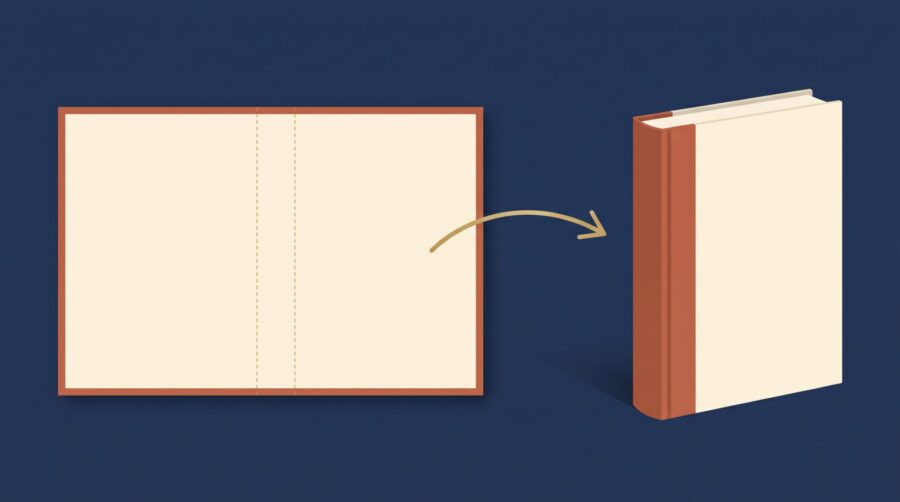
A print cover file is always larger than the finished book because parts of it get cut off or folded away during manufacturing. Printers call the finished page size the trim size: a 6″ × 9″ novel has a 6″ × 9″ trim size. The cover PDF you upload must be bigger than that. The printer trims paper away at the edges, wraps material around hardcover boards, and folds in the flaps of a hardcover’s paper jacket.
The cover is also a separate file from your interior. Barnes & Noble Press asks for one print-ready PDF for the inside pages and another for the cover. The cover PDF is usually a full wrap: back cover, spine (the edge that faces out on a shelf), and front cover laid out side by side as a single page. A dust jacket adds a flap at each end. You can also upload separate front and back cover files and let B&N Press assemble the spine. That route suits authors who would rather not build the full wrap themselves or prefer to design the cover before the page count is final. But it limits the available options for the spine design.
How much bigger the file needs to be depends on the binding style: paperback, hardcover with printed case or hardcover with a removable jacket. That is why the same book needs a different cover file for each format it comes in.
How Do Paperback, Printed Case, and Dust Jacket Cover Files Differ?
Barnes & Noble Press prints three binding styles, and each one needs its own cover geometry. A paperback is a flexible cover glued to the spine, so its cover file only needs slim trim allowances at the edges. A printed case hardcover has the artwork printed on a sheet that wraps around the rigid boards. Its file therefore needs much deeper margins because the boards are larger than the book’s pages and the cover has to wrap over the edges onto the insides. A dust jacket hardcover puts the artwork on a removable paper jacket with two folded flaps. The flaps are printable: B&N Press says they can carry text, such as your author bio or synopsis, or a continuation of the cover design.
The numbers in the Barnes & Noble Press Print Formatting Guide show how far apart the three formats sit. For the same 6″ × 9″ trim size, the separate cover panels measure:
- Paperback: 6.125″ × 9.25″ per panel
- Hardcover with printed case: 6.943″ × 10.5″ per panel
- Hardcover with dust jacket: 6.688″ × 9.5″ per panel
Spine width also differs, because the boards used for a hardcover are thicker than the paper used for a paperback.
Availability differs too. The guide lists 21 paperback trim sizes and 12 printed case sizes. The dust jacket comes in just four trims: 5″ × 8″, 5.5″ × 8.5″, 6″ × 9″, and 6.14″ × 9.21″. Page counts run from 18 to 800 pages for most trims, although the landscape 11″ × 8.5″ size caps at 400. B&N Press does not offer spiral binding, embossing, foil lettering, or leather covers. Our guide to print-on-demand book binding options gives a plain-language tour of how platforms build these binding styles.
When we design a cover that will ship in more than one binding, we treat each format as its own layout job from the start rather than designing the paperback and stretching it later. Type that sits comfortably on a paperback back cover can end up folded over the board edge on a printed case if the artwork is simply enlarged to fit.
How Does the Barnes & Noble Press Cover Template Set Your Spine Width?
Barnes & Noble Press calculates spine width for you through its cover template generator. The tool builds a custom template from six data fields, in the order its form presents them: Estimated Page Count, Page Size, Interior Print Color, Cover Format, Cover Finish, and Paper Color & Weight. We could find no spine-width formula or paper thickness chart in B&N Press’s help centre or its formatting guides, so the generated template is the authority. The workflow runs in this order:
- Finish the interior and export its final PDF.
- Record the exact page count of that PDF. Count every blank page and every page before and after the story, such as the title and copyright pages. One printed side counts as one page, so a 200-page book uses 100 sheets of paper.
- Fill in the generator’s six fields with those final details, then download the template ZIP. It contains a full-wrap template plus separate front- and back-only templates.
- Design over the template, following the guides it shows (explained in the next section).
The separate-panel route swaps the full wrap in step 4 for front and back cover files only. B&N Press then asks you to pick a spine colour and any spine text, and builds the spine itself.
The order matters because the generator builds the spine from the page count you enter. Change any of the six details afterwards, even by one blank page in the count, and B&N Press says the old template will no longer match. Generate a new one and refit your artwork. A spine built on the wrong count sits visibly off-centre on the shelf copy.
One more spine fact is worth knowing. B&N Press advises leaving spine text off books under 48 pages, because the spine is too narrow to carry readable type.
Spine arithmetic itself works the same way across the industry, but paper thickness, cover/board thickness, and bleed margins vary from printer to printer, so always check the specifications of the platform you intend to work with. Our earlier post on calculating book cover spine width walks through the general maths.
What Specs Must the Cover PDF Meet to Pass B&N’s File Checks?
A Barnes & Noble Press cover PDF must arrive at the exact size of its generated template. It needs embedded fonts, no crop marks (the small corner lines some printers use to show where to cut), and no password protection.
The template itself shows you where everything goes. Open it and you will see coloured guide lines. Each colour has one meaning, and the template explains them in its own notes:
- Red dotted lines (bleed): your background artwork must reach all the way to these outer lines, so the colour still runs off the edge after the printer trims the paper. Keep text, logos, and anything important out of this outer strip.
- Blue dotted lines (safety margin): a line set 0.25″ inside the finished edge. All text, images, logos, and the barcode must stay inside it.
- Light blue areas (spine margin): narrow buffer strips along each side of the spine. Keep spine text clear of them so it cannot wrap onto the front or back cover.
- Purple arrow (spine width): the exact spine the generator calculated for your book. Our sample templates for a 256-page 6″ × 9″ book set it at 0.58″ for the paperback and 0.75″ for both hardcover styles; the binding changes the spine even when the book stays the same.
- Light red areas (fold/wrap): these appear on the dust jacket template and mark where the jacket folds around the flaps. Nothing important should sit on a fold.
- Barcode box: a 1.5″ × 1.11″ box near the bottom right of the back cover where B&N Press prints the barcode. Leave it clear; if you place your own barcode, B&N Press still adds its own.
Delete the guides and the template’s instruction notes before you export. They are positioning aids, not part of your artwork.

Beyond the guides, the checks are mechanical:
- Images: B&N Press recommends 300 dpi (dots per inch, a measure of image sharpness) or higher. Lower-resolution images still pass the file check, but B&N Press will not guarantee how they print.
- Fonts: every font must be embedded, meaning packed inside the PDF so the printer does not need it installed. The font’s licence must also permit embedding. B&N tells Word for Windows users to tick “ISO 19005-1 compliant (PDF/A)” when saving, an archival setting that forces fonts and images to travel inside the file.
- Colour: B&N Press explains that screens display RGB while presses print CMYK, and warns printed colour may differ from your monitor; it does not state that the submitted PDF must be CMYK.
- File size: the whole print book project must stay under 650 MB.
When a file fails, the platform reports the upload as not accepted and gives a reason. The usual causes: a stale template or crop marks changing the PDF page size, essential content sitting in a bleed or fold area, fonts that were never embedded, or template guides left visible in the export. The fix is the same loop each time: correct the cause in your design file, export a fresh PDF, and check its page dimensions against the template before uploading again. Our own pre-upload habit is to open the exported PDF in a reader and read its document size off the file properties. A wrong cover size is the quickest rejection to catch and the easiest to miss on screen.
Building the Cover in InDesign, Affinity Publisher, or Canva
B&N Press’s templates download as PDF files, and the finished cover you upload is a PDF too, so any design application works if it holds the template’s geometry. The method is the same everywhere: create a single page at the template’s full outer size, place the template on its own layer as a positioning reference, lock that layer, design over it, then hide the template before export. The template page already includes the bleed and fold allowances you saw in the guides, so do not add extra bleed on top of it.
In Adobe InDesign, which is what we build covers in, the template PDF goes on a locked, non-printing reference layer. The export uses Adobe PDF (Print) with printer’s marks switched off and fonts embedded, so the output page matches the template size exactly. Cover artwork and background colour hide the underlying guides, which you need to see to check text positioning. So we tend to place backgrounds on a separate layer behind the text layer too, which lets us hide them and check positions against the guides as we work.
In Affinity Publisher, the same reference-layer approach applies. Export to PDF with font embedding set to all fonts and printer’s marks off. Affinity’s export panel offers several PDF/X presets, but B&N Press’s help pages name none of them; the only PDF standard they mention is PDF/A, in their instructions for Word. Plain press-ready settings that preserve the page size are enough; if you would rather use a standard, PDF/X-3 is a reasonable choice, because unlike PDF/X-1a it does not force your artwork into CMYK. Our walkthrough on exporting a print-ready book PDF from Affinity Publisher covers the export panel setting by setting.
In Canva, create a custom-size design at the template’s full width and height, and leave the “Crop marks and bleed” download option unticked. Canva’s bleed and crop mark sizes are fixed, and the B&N canvas you built already contains the bleed and fold allowances. Switching the option on adds marks and extra area outside the template’s page size, which is exactly what gets a file rejected. Download as PDF Print and check the exported file’s dimensions before uploading.
Can You Reuse Your KDP Cover File on Barnes & Noble Press?
A cover file built for Amazon KDP can donate its artwork to a Barnes & Noble Press edition, but do not upload the finished PDF unchanged. The Formatting Guide tells authors to place a full cover previously used on another print platform into a new file at B&N Press’s overall dimensions. Save that new file as a fresh PDF.
The reason is physical: each printer runs its own paper stocks, so the same page count produces a different spine width. KDP, for example, publishes spine width factors of 0.002252″ per page on white paper and 0.0025″ per page on cream. B&N Press uses different stocks and different arithmetic, which is why its generator, not KDP’s calculator, sets the spine on a B&N cover. The hardcover options differ too: KDP prints its hardcovers only as a printed case (a construction it calls case laminate) and offers no dust jacket. B&N Press offers both a printed case and a dust jacket.
The workable multi-platform habit: keep one master design file with the back cover, spine, front cover, and any flaps as separately movable pieces. Then produce a dedicated output file per platform and binding on that platform’s own template. We build covers this way as standard: one native InDesign master per book, laid out afresh on each platform’s template rather than rescaled. Scaling a finished wrap moves the spine, the barcode clearance, and the trim offsets all at once. Never stretch another printer’s finished PDF to fit.
Setting up a Barnes & Noble Press cover file comes down to sequence: lock the interior, generate the template from the real page count, design inside the guides, and export a clean PDF at the template’s exact size. When B&N Press rejects a cover, the cause usually sits somewhere in that sequence. The fix starts with regenerating the template and checking the numbers again. If you sell on more than one platform, budget time to lay the cover out separately for each; the artwork travels, the file does not. B&N Press also publishes ebooks, and our companion post on Barnes & Noble Press for self-published ebooks covers that side of the platform.
Frequently Asked Questions
Where do I find the official Barnes & Noble Press cover template?
Use the free cover template generator at press.barnesandnoble.com/book-cover-template-generator. Enter the six details it asks for, from estimated page count and page size through to cover format and paper, and it produces a ZIP containing a full-wrap template plus separate front and back cover versions sized for your exact book.
What file format does Barnes & Noble Press accept for a print book cover?
Barnes & Noble Press accepts the print cover as a PDF, uploaded separately from the interior file. Fonts must be embedded, and the file must carry no crop marks and no password protection. Authors exporting from Word on Windows should select the “ISO 19005-1 compliant (PDF/A)” option when saving.
Does Barnes & Noble Press require CMYK cover files?
We could find no rule in Barnes & Noble Press’s help pages or guides requiring a CMYK cover PDF. Its help pages note that screens show RGB while printing presses use CMYK, and warn that printed colour may not match your monitor, but they stop short of mandating a colour space for the submitted file.
Can I upload separate front and back covers instead of a full wrap?
Yes. The Barnes & Noble Press template ZIP includes separate front and back cover templates alongside the full-wrap version, and the platform assembles the spine when you use the separate route. Choose one route or the other; the two file sets are not mixed in a single upload.
What is the maximum file size for a Barnes & Noble Press print book?
A Barnes & Noble Press print book project must be under 650 MB in total. There is no separately published limit for the cover file alone, and ebook files on the platform have their own 20 MB ceiling.
