
Most of the time, a KDP cover rejected at upload comes down to a file that does not match Amazon’s exact specifications: the wrong overall dimensions, a resolution below 300 DPI, a spine width that no longer fits your page count, artwork sitting in the bleed or barcode area, or the wrong file type or color mode. Each cause has a specific, fixable reason.
Why Was Your KDP Cover Rejected?
A cover file is rejected when it fails one of Amazon’s automated preflight checks, and almost every rejection falls into one of six groups: dimensions, resolution, spine, bleed and safe zone, file type, or color mode. KDP’s error messages are often vague (“your cover does not meet the requirements”), so the fastest way to fix the problem is to know which group the error belongs to.
Here is how the common error wording maps to a cause. A message about the cover not matching the “template” or “pixel” requirements points to a size problem: your file is not the exact width and height KDP expects. A note that the resolution is too low means the artwork is under 300 dots per inch (DPI). A complaint about the spine or about content too close to the edge points to spine width or safe-zone errors. A file-type or “could not convert” error points to the wrong format or a transparency that was never flattened.
The single file we most often see bounce back is a cover exported at screen resolution from a design tool like Canva, or a screenshot of a finished design rather than a proper print export. It looks perfect on a monitor and fails the moment KDP measures it. Amazon publishes its full paperback cover guidelines, and matching them before you upload saves a frustrating round of rejection emails.
What Size and Resolution Does a KDP Cover Need?
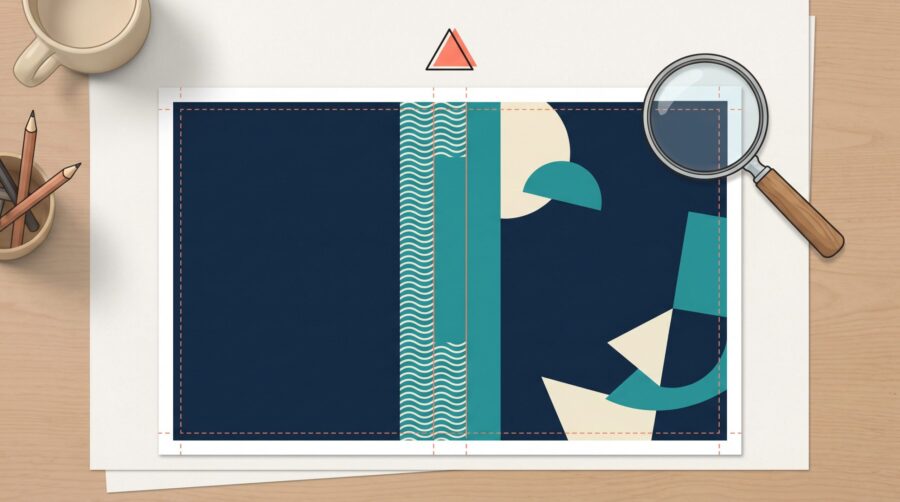
A KDP print cover must be one single PDF that holds the back cover, spine, and front cover as a single wraparound image, sized to your exact trim size and page count. The total width is built from five pieces: bleed, back cover, spine, front cover, and bleed again. The height is trim height plus 0.125″ of bleed at the top and bottom. If any of those measurements is off, even by a fraction of an inch, the file is rejected.

Every image in that file needs to be at least 300 DPI. Resolution is where screen-designed covers fail: a 6″ × 9″ front cover is about 1,800 × 2,700 pixels at 300 DPI before bleed, but the same design exported at 72 DPI for the web is only a few hundred pixels and far too small. Ebook covers are different again. For a Kindle ebook cover, Amazon recommends an image about 2,560 pixels tall × 1,600 pixels wide, saved as a JPEG, with 300 DPI as the minimum.
The reliable fix for any size error is to stop guessing and start from Amazon’s own measurements. Download the correct template from the KDP Cover Calculator for your trim size, page count, and paper type, then build the artwork to fit it. If you are not sure how to read the template you download, our guide to reading a print book cover template walks through the trim, bleed, and safe-zone lines. We see far fewer size rejections from authors who design on the template than from those who set up a custom canvas by hand.
The same fixing approach applies when the cover came from a designer. Download the correct KDP template for your exact trim size and page count, then send that template to your designer to refit the artwork.
How Do You Fix a Spine Width That’s Wrong for Your Page Count?
Spine width is not a fixed number; it is calculated from your page count and paper type, so it changes whenever your interior changes. KDP multiplies your page count by a per-page thickness: white paper uses 0.002252″ per page and cream paper uses 0.0025″ per page. A 300-page book on white paper has a spine of about 0.68″; switch to cream and the same book needs about 0.75″. Use the wrong number and the front and back panels land in the wrong place, and KDP rejects the file.
The spine is where rejections cluster after a late round of edits. An author finalizes the cover, then adds or cuts a few pages in the manuscript, and the spine math no longer matches. The fix is simple but easy to forget: recalculate the spine and regenerate the cover any time the page count changes. Our walkthrough on calculating spine width covers the formula step by step.
Two more spine rules trip people up. KDP only prints text on the spine for books with more than 79 pages; below that the spine is too narrow, so leave it as a plain color. And a hardcover is not a thicker paperback: a case-laminate hardcover adds extra binding width to the spine and uses a different wrap, so a paperback cover can never simply be reused for the hardcover edition.
KDP hardcovers carry their own constraints to plan around: they are case-laminate only (the artwork is printed straight onto the board, with no dust jacket), they support 75 to 550 pages, and they are not available for Expanded Distribution.
Bleed, Safe Zone, and Barcode Errors
Many covers are rejected not for their size but for what sits near the edges. Bleed is the extra strip of artwork that extends past the trim line so no white slivers appear after the book is cut. KDP requires 0.125″ (3.2 mm) of bleed on the top, bottom, and outer edges, and your background or image must run all the way into it. Our explainer on what bleed is and why print books need it shows this in detail.
The opposite problem is content placed too close to the trim. Important elements (title, author name, logos) need to stay inside the safe zone, at least 0.125″ to 0.25″ in from the trim line, or they risk being cut off. Spine text needs at least 0.0625″ (1.6 mm) of clearance on each side so it does not drift onto the front or back during printing.
The barcode area is the last common edge error. KDP places an ISBN barcode automatically in the lower-right of the back cover, so you must leave that area (roughly 2″ × 1.2″) clear of busy artwork or text. If your design covers it, the barcode cannot sit cleanly and the file can be flagged. A plain or lightly colored block in that corner is the safest approach.
Does KDP Want RGB or CMYK Covers?
For print covers, KDP recommends CMYK (the four-ink color model used by printers) but will accept RGB and convert it during processing; the risk with RGB is that bright screen colors can shift and look muted in print. KDP also strips out embedded ICC color profiles, so leaving one in is not usually a rejection, but it can change how your colors render. Ebook covers are the reverse: they must be RGB, because screens use RGB and CMYK is not supported for ebooks. If you want the full picture, see our comparison of RGB vs. CMYK for book covers.
This is also where the platforms differ, which matters if you publish wide. IngramSpark is stricter than KDP about color and file preparation: it requires CMYK for print covers, asks you to remove embedded ICC color profiles, mandates a clear barcode area on every cover, and expects a complete, press-ready PDF. The practical lesson is that a cover file built to pass KDP will not automatically pass IngramSpark, and the other way around. IngramSpark publishes its own file requirements for print books so you can prepare a separate file when you need one.
File type is the simplest rule of all. A print cover must be a single PDF (KDP allows files up to 650 MB, though it recommends staying under 40 MB so printing is not slowed). An ebook cover should be a JPEG or TIFF. Submitting a PNG for a print cover, or two separate front and back files, is a quick way to get a rejection.
When the Dimensions Are Right but the File Still Fails
Sometimes every measurement is correct and the file still will not go through. The usual culprits are inside the PDF: unflattened transparency and missing fonts. KDP asks you to flatten all transparencies, because layered effects can print with missing or distorted content, and to embed every font, so the printer does not substitute a different typeface. Both are export settings rather than design changes, and both are easy to miss.
A less obvious cause is a metadata mismatch. KDP expects the title, author name, and ISBN shown on the cover to match what you entered during title setup; a leftover working title or a different author spelling can hold up approval. It is worth a final check that the cover and the listing agree before you upload. This is a different problem from a rejected interior file, which we cover separately in why your PDF interior file gets rejected.
A rejected cover is almost always a specifications problem, not a sign that something is wrong with your design. Work through the six groups in order: confirm the full-wrap dimensions against the KDP template, check the resolution is 300 DPI, recalculate the spine for your current page count, keep artwork out of the bleed and barcode zones, match the color mode and file type to the platform, and flatten transparencies and embed fonts before export. Fix the cause behind the error message and the file goes through on the next try.
Frequently Asked Questions
Why does KDP say my cover “does not meet the pixel requirements”?
That message means your file is not the exact pixel width and height KDP expects for your trim size, page count, and paper type. It is a dimensions problem, not an art problem. Download the template from the KDP Cover Calculator and rebuild the cover to those exact pixel dimensions at 300 DPI.
Do ebook covers get rejected for the same reasons as print covers?
No. Ebook covers have no spine, bleed, or barcode, so those errors do not apply. They are rejected mainly for being too small or low-resolution, or for using CMYK. Use an RGB JPEG around 2,560 × 1,600 pixels at 300 DPI.
How is an IngramSpark cover rejection different from KDP’s?
IngramSpark is stricter on file preparation. It requires CMYK, asks you to remove ICC color profiles, mandates a clear barcode area on every cover, and expects a complete press-ready PDF. A cover built to pass KDP often needs a separate version to pass IngramSpark.
Can I design a KDP cover in Canva without it being rejected?
Yes, if the final export matches KDP’s full-wrap size, 0.125″ bleed, safe margins, and 300 DPI. The common failure is exporting at screen resolution or on a canvas that does not match the template. Set a custom canvas to the exact dimensions from the KDP template before you design.
Does a hardcover cover need a different file from the paperback?
Yes. A case-laminate hardcover adds binding depth to the spine and uses a different wrap, so the total dimensions differ from the paperback. Always download the hardcover template and build a separate file; never reuse the paperback cover.
