
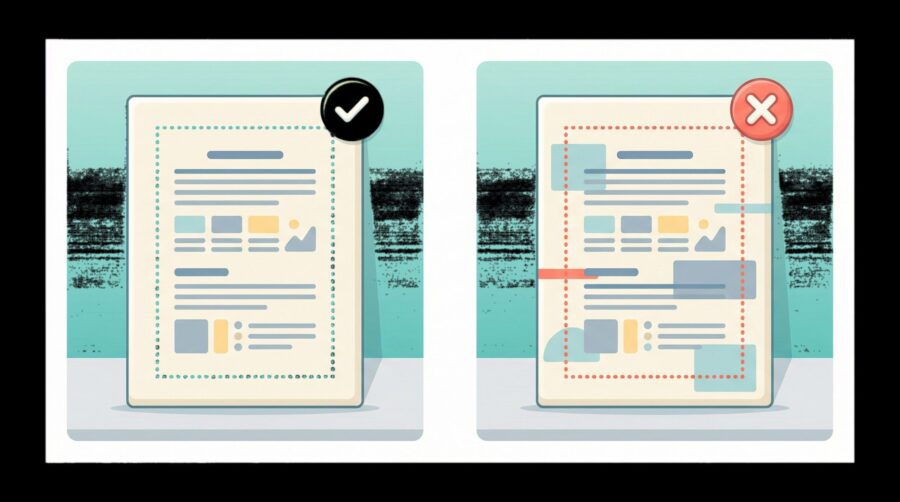
When KDP rejects your PDF interior file, the problem is almost always how the PDF was created rather than anything wrong with the format itself. The most common causes are a mismatch between your PDF page size and the trim size you selected during setup, content that falls outside the required margins, fonts that are not fully embedded, and images below 300 DPI. All of these are fixable in your source file before you re-export to PDF.
- How Does KDP Review Your Interior File?
- What Happens When Your PDF Page Size Doesn’t Match the Trim Size?
- Why Is KDP Flagging Content Outside the Margins?
- What Does “Fonts Not Embedded” Mean?
- How Does Image Resolution Affect Your Print File?
- What Other Issues Can Get Your Interior PDF Rejected?
- Frequently Asked Questions
How Does KDP Review Your Interior File?
KDP checks your file in two stages, and knowing what each one looks for saves a round of rejections. The first is an automated scan by the Print Previewer tool, which runs the moment you upload your manuscript. As KDP’s guide to fixing paperback and hardcover formatting issues sets out, the main things Print Previewer scans for are margins, cover size, and fonts. If it finds problems, you see an explanation of each error and can jump straight to the affected pages in the previewer.
Print Previewer will also attempt to fix certain problems itself, scaling or reflowing content to fit within the required margins. That sounds helpful, and sometimes it is, but it is worth understanding what it means: the tool is reading the structure of the file rather than what is visible on the page, so it catches errors that look like nothing when you scroll through your manuscript. It also means an “accepted” file may have been quietly scaled, which is not the same as a correct file.
The second stage is a manual review that happens after you submit for publication. If a reviewer finds further issues, you receive an email with links back into Print Previewer showing exactly where they are. Some checks only ever happen at this stage, including whether your title page matches the book details you entered, so passing the automated scan is not the finish line.
One thing we notice repeatedly in files sent to us after a rejection: authors fix the error message and re-upload without re-checking the settings the fix disturbed. Changing page size shifts the page count, and the page count determines the minimum gutter, so a trim-size fix quietly creates a margin fault. Working through both in one pass is faster than two more rejections.
What Happens When Your PDF Page Size Doesn’t Match the Trim Size?
The page dimensions in your PDF must match the trim size you selected in your KDP book setup. If you chose a 6 x 9 inch trim and your PDF pages are US Letter (8.5 x 11 inches), Print Previewer rejects the file immediately. This is one of the easiest errors to make and one of the easiest to fix.
In Microsoft Word, you set the page size under Layout > Size > More Paper Sizes, then enter the exact width and height for your chosen trim. If your book uses bleed (meaning images or background colours intentionally run to the very edge of the printed page), KDP’s trim size, bleed, and margins guidance says to add 0.125 inches (3.2 mm) to the width and 0.25 inches (6.4 mm) to the height, because 0.125 inches is trimmed from the top, bottom, and outside edges. A 6 x 9 inch book with bleed therefore becomes a 6.125 x 9.25 inch page. Most text-only books do not use bleed at all, so for the majority of authors the PDF page size should simply match the trim size.
Two consequences follow from any page-size change. The text reflows, which changes your page count, and because KDP’s margin requirements depend on page count, your margins may no longer be valid. Confirm both before exporting your final PDF. It is also worth noting that bleed is only supported for fixed-format files: if your book has bleeding images, a PDF is the only interior file type that will work.
Why Is KDP Flagging Content Outside the Margins?
Margin violations are the single most common reason KDP flags an interior file. KDP requires all text and non-bleeding content to sit inside a safe area defined by the top, bottom, outside, and inside (gutter) margins. The inside margin is larger than the outside because the binding eats into the page, and it grows with page count as the book gets thicker.
| Page count | Inside (gutter) margin | Outside margins, no bleed | Outside margins, with bleed |
|---|---|---|---|
| 24 to 150 | 0.375 in (9.6 mm) | at least 0.25 in (6.4 mm) | at least 0.375 in (9.6 mm) |
| 151 to 300 | 0.5 in (12.7 mm) | at least 0.25 in (6.4 mm) | at least 0.375 in (9.6 mm) |
| 301 to 500 | 0.625 in (15.9 mm) | at least 0.25 in (6.4 mm) | at least 0.375 in (9.6 mm) |
| 501 to 700 | 0.75 in (19.1 mm) | at least 0.25 in (6.4 mm) | at least 0.375 in (9.6 mm) |
| 701 to 828 | 0.875 in (22.3 mm) | at least 0.25 in (6.4 mm) | at least 0.375 in (9.6 mm) |
These are KDP’s minimums rather than recommendations, and the top, bottom, and outside margins do not have to match each other as long as each clears the floor. Other print-on-demand printers publish their own figures, so check the specification for whichever printer you are using rather than assuming these numbers travel.
The tricky part is that Print Previewer does not only look at text you can see. It scans for any content outside the margins, including invisible characters, and two situations catch authors out repeatedly. Italicised text can extend slightly beyond its text box, because italic characters lean past their bounding box; if that overshoot crosses the margin line, the file is flagged. Trailing spaces at the end of lines can also extend invisibly past the margin, and because spaces are text characters the tool treats them as content in the wrong place. KDP’s own advice is to set margins slightly larger than the minimum to absorb this.
To find these culprits in Word, click the pilcrow button (¶) on the Home ribbon to reveal all formatting marks, or press Ctrl + Shift + 8. Pressing Ctrl + A on a flagged page highlights every object, which makes stray text boxes and forgotten art boxes visible. Ctrl + F1 opens Reveal Formatting, which shows exactly what styling has been applied to a selection and is the quickest way to find a style overriding the one you intended. If Print Previewer is scaling some pages differently from others, invisible characters or leftover objects are almost always the cause. One further tip from KDP: if your pages carry a background colour or graphic and you are getting a margin error, try switching the Bleed Settings option to “Bleed” before you start hunting.
What Does “Fonts Not Embedded” Mean?
Embedding a font means storing the complete font data inside your PDF so the printing presses can render your text exactly as designed. If a font is not embedded, the press substitutes another one, which changes your layout in ways nobody has approved. KDP asks that all fonts be fully embedded in every interior and cover file submitted.
In Word, go to File > Options > Save and tick “Embed fonts in the file”. Make sure the two sub-options (“Embed only the characters used in the document” and “Do not embed common system fonts”) are both unticked, because partial embedding produces the same error. Then save as PDF from File > Save As. Our step-by-step guide to embedding fonts in your book PDF covers the equivalent settings in other applications.
There is one edge case that trips people up. Some fonts carry licence restrictions that prevent commercial embedding, and KDP says so directly: if fonts are fully embedded in your original file but Previewer still reports unembedded font errors, the licence may be blocking it. The fix is to switch to a font that permits embedding. Most standard serif and sans-serif faces commonly used in book interiors allow full embedding without restriction.
How Does Image Resolution Affect Your Print File?
KDP recommends that interior images be at least 300 DPI (dots per inch) at their printed size. An image that looks sharp on screen at 72 or 96 DPI prints blurry, because screens and presses work at very different resolutions. To check, right-click the image file, open Properties > Details, note the pixel dimensions, and divide by the size it will print at. A 1200 x 1800 pixel image printed at 4 x 6 inches is exactly 300 DPI.
Two common workflows silently degrade images. The first is enlarging an image after inserting it: stretching a 600 x 900 pixel image to fill a full page drops the effective DPI well below 300, so insert images at their intended print size. The second is Word’s built-in image compression, which is on by default; switch it off under File > Options > Advanced by ticking “Do not compress images in file”, as our guide to stopping Word compressing your book’s images explains. For a fuller look at how DPI works in print books, see our guide to interior image DPI for print-on-demand.
One resolution rule sits outside the usual 300 DPI advice. For manga and comics, KDP asks for images of at least 600 DPI, along with specific handling of halftone dots, to avoid moiré patterns in print. If your book uses screentones, that higher floor applies to you.
What Other Issues Can Get Your Interior PDF Rejected?
Beyond the big four of trim size, margins, fonts, and images, KDP checks for several problems that are less common but still cause rejections.
Transparencies and unflattened layers. If you create your PDF in a design application such as InDesign or Affinity Publisher, flatten all transparencies and layers on export. Unflattened layers can cause elements to shift or disappear during KDP’s processing. Our guide to what makes a PDF print-ready covers the export settings that prevent this.
Excessive blank pages. KDP allows no more than four consecutive blank pages at the beginning or middle of a manuscript, and no more than ten at the end. More than that triggers a rejection.
Pagination errors. Page numbers must run sequentially, with even numbers on left-hand pages and odd numbers on right-hand pages (reversed for right-to-left languages). A skip or jump suggests missing or misordered pages, which KDP treats as a production risk.
Illegible text. All text must be at least 7 points, and the check applies everywhere text appears: body text, captions, headers, footers, the cover, and any text sitting inside an image. KDP also flags text that other elements cut off or overlap, and text that blends into its background.
Book details mismatch. The title, author name, ISBN, imprint, and language in your interior file must match what you entered during title setup. Even small differences are flagged during manual review, and KDP’s own worked example is “J.T. Smith” on the title page against “John T. Smith” in the book details.
Template placeholder text. If you used a formatting template, check your front matter, headers, and footers for placeholder text you forgot to replace. KDP publishes a list of the strings it looks for, including “Book title”, “Insert text here”, and “Type here”, and this one is caught during manual review, so it costs you a full review cycle.
Export settings on the PDF itself. KDP’s guidance on saving your manuscript file asks for PDF/X format (PDF/X-1a preferred), image downsampling disabled, and no PDF-creation logos or watermarks. It also asks that fonts be fully embedded rather than embedded as subsets, and that transparent objects and layers be flattened in the native file rather than at export. Files must be single pages rather than two-up spreads, must carry no crop marks, trim marks, bookmarks, comments, or annotations, and must not be locked or encrypted. The conversion ceiling is 650 MB.
Hairlines and pale greys. Two specifications catch charts and tables in particular. Any rule or line in your book should be at least 0.75 point (0.01 inch, 0.3 mm) thick, because thinner lines can drop out on press. If you have chosen black ink and are using grey backgrounds, KDP recommends a minimum grayscale fill of 10 per cent, since anything paler tends to print as nothing.
The pattern across all of these is the same: the fix belongs in your source file, not in the PDF. Re-exporting from a corrected Word or InDesign document takes minutes; patching a finished PDF tends to produce a file that passes the scan and prints wrong. One further habit worth adopting, and KDP recommends it explicitly: export to a new PDF file each time rather than saving over the previous one, because saving over an earlier version can compound corrupted data and cause processing delays.
Frequently Asked Questions
Does KDP accept Word files or only PDFs for print interiors?
KDP accepts both Word (.doc/.docx) and PDF files for print book interiors, along with RTF, HTML, and plain text, and converts them to PDF before printing. PDF gives you more control, because KDP does not need to reinterpret your layout. There is one hard limit: bleed is only supported for fixed-format files such as print-ready PDFs, so a book with images running to the page edge must be supplied as a PDF.
Will KDP’s Print Previewer fix formatting issues automatically?
Print Previewer will attempt to fix some margin and trim size issues by scaling or reflowing your content. That automatic correction can introduce new problems: pages may scale unevenly, text may shift, and the layout may not look the way you intended. It is always better to fix the issues in your source file and re-upload a clean PDF.
Do I need to add bleed to my interior PDF?
Only if your book has images, colours, or design elements that intentionally reach the very edge of the printed page. Most text-only novels and non-fiction books do not need bleed. If none of your content touches the page edges, set the bleed option to “No Bleed” and export your PDF at the exact trim size. If even one page needs bleed, the whole file must be set up with bleed.
What is the minimum font size KDP allows in a print book?
All text must be at least 7 points. Anything smaller is flagged as illegible during review. This applies to body text, captions, headers, footers, and any text inside images, as well as text on the cover.
How do I check whether my fonts are embedded in a finished PDF?
In Adobe Acrobat Reader, open the PDF and go to File > Properties > Fonts. Every font listed should show “Embedded” or “Embedded Subset” beside its name; if any shows neither, it is not embedded and needs fixing in your source file before you re-export. Note that KDP recommends fonts be fully embedded rather than embedded as subsets, so “Embedded Subset” will usually pass but full embedding is the safer setting.
Why did my file pass Print Previewer and then get rejected later?
Because the automated scan and the manual review look for different things. Print Previewer checks structural properties such as page size, margins, and font embedding. The manual review that follows submission also checks whether your interior matches the book details you entered, whether template placeholder text is still present, and whether text is legible. A file can be structurally perfect and still fail on a title page that says something slightly different from your KDP setup.
