
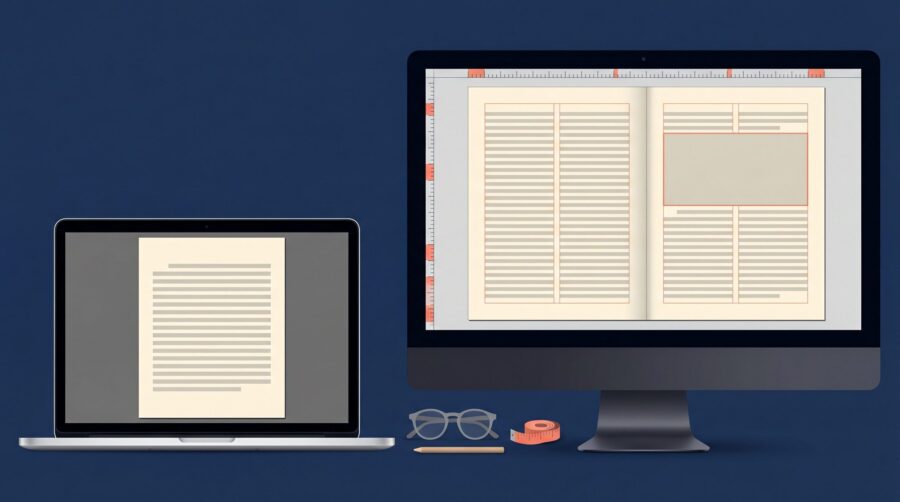
No, you do not need InDesign to format your book. For a text-only novel or memoir, Microsoft Word can produce a clean, print-ready file that Amazon KDP accepts. InDesign earns its place on image-heavy books, where its precise layout tools and true print-file export do things Word cannot.
What can InDesign do that Word can’t?
InDesign is page-layout software built for typesetting, so it controls the position of every element on the page in ways Word’s tools were never designed for. Word is a word processor; it is excellent for writing and editing, but it treats a book like a long letter that flows from top to bottom. The practical gap shows up in a handful of specific features.
- Master pages. A master page is a template that applies the same running headers, footers, and page numbers across every page at once, with different setups for left and right pages. Word’s section-based headers can approximate this, but they break easily when you add or remove pages.
- Baseline grid. This locks every line of text to an invisible ruled grid, so the lines on facing pages and in side-by-side columns sit at exactly the same height. Word has no equivalent, which is why text in a Word layout can drift slightly out of alignment.
- Anchored objects. In InDesign you can pin an image to a specific word so it travels with that text during edits. Word’s images are notorious for jumping around when you change the words above them.
- Paragraph and character styles at scale. Both programs have styles, but InDesign adds tools like GREP styles, which automatically format text that matches a pattern (for example, italicising every book title) without you touching each one.
- True print-file export. InDesign exports a PDF/X file, the industry-standard format for professional printing, with full control over colour, embedded fonts, and bleed. Word’s “Save as PDF” makes an ordinary PDF, which is a meaningful difference covered in the next section.
InDesign also composes justified text more evenly. Its paragraph composer looks at a whole paragraph at once when deciding where to break lines, which reduces the ragged “rivers” of white space that single-line composition in Word can leave behind. Adobe documents these layout tools, including how anchored objects keep images tied to their text. The most common version of this problem we see is a Word manuscript where every image shifts a page out of place the moment a paragraph is edited; in InDesign that image stays put because it is anchored.
Can you format a print book in Word?
Yes. For a straightforward text novel, memoir, or simple non-fiction title, Word can produce a submission-ready interior that KDP accepts without complaint. The keys are setting the page to your final trim size (such as 6″ × 9″), using mirror margins so the inside edges are wider, and setting a gutter that grows with your page count.
KDP publishes free Word templates for common trim sizes and sets clear margin rules. Its official margin and bleed guidelines specify an inside (gutter) margin that scales from 0.375″ for a 24-to-150-page book up to 0.875″ for an 828-page book, with outside, top, and bottom margins of at least 0.25″. Bleed of 0.125″ is only required when artwork runs to the page edge, which most text novels never do. Place images at 300 DPI at their printed size, embed your fonts in the PDF, and a Word file will pass.
The one real limit is the print file itself. Word’s “Save as PDF” produces a standard PDF that KDP will take, but it cannot natively create the PDF/X-1a:2001 file that IngramSpark’s file creation guide requires for print interiors. IngramSpark is stricter than KDP on this point: it wants embedded fonts, grayscale or CMYK colour rather than RGB, and total ink coverage under 240%. The files we most often see bounced at IngramSpark are Word-exported PDFs that simply are not in the PDF/X format the platform asks for. If you want one Word file to feed both print and ebook, our guide to producing a paperback and ebook from one Word manuscript walks through the settings.
When do you actually need InDesign?
The choice becomes clear at the extremes. A cookbook, a children’s picture book, or photo-heavy non-fiction is where Word struggles and a layout program becomes close to essential. These books depend on the exact relationship between images and text on the page, and on the colour and bleed precision that printing demands.
Three needs drive this. First, image anchoring and free placement, so a photo sits exactly where you want it and stays there. Second, colour management: IngramSpark requires CMYK for colour interiors, and InDesign can convert your RGB photos to CMYK on export using the same engine as Photoshop, while Word does no colour conversion at all. Third, full-page bleed, where artwork runs off every edge, which needs the 0.125″ of overflow that page-layout software sets up cleanly.
Image-led ebooks add another wrinkle. A picture book usually needs a fixed-layout EPUB, which locks text and images to set positions, rather than the reflowable EPUB used for novels where text reflows to fit the reader’s screen. Word only outputs reflowable text. For a 90,000-word genre novel with no pictures, none of this applies, and Word or a dedicated author tool is plenty. For a recipe collection with a photo on every spread, trying to force it through Word usually costs more time than learning a proper layout tool would.
Is InDesign worth the cost and learning curve?
That depends on how many books you plan to make and how complex they are. InDesign is a subscription, not a one-time purchase. As of June 2026, Adobe lists the InDesign single-app plan at US$22.99 per month on an annual commitment, per its official plans page. You keep paying to keep access, and the program stops working if you cancel.
There is also a real time cost. InDesign is deep software with a steep start; reaching the point where you can lay out a book confidently typically takes a couple of days of focused learning, not an afternoon. For an author formatting a single text novel, that investment rarely pays off. For someone producing a series, a complex non-fiction title, or many books over time, it can.
This is the honest trade-off that a lot of advice skips: the typographic refinements InDesign adds to a plain novel, tighter spacing and smoother text edges, are real but subtle, and most readers will never notice them in a well-set Word document. If you are weighing whether the broader skill set is worth building, our piece on formatting tools beyond Vellum on a PC covers the landscape. The deciding question is not “is InDesign better” (it is, at the high end) but “does this book need what InDesign is better at.”
What are the alternatives to InDesign and Word?
InDesign and Word are not the only two options, and the middle ground has grown a lot. Several tools built for indie authors sit between a word processor and professional layout software, each with its own trade-offs. None is the single right answer; the best fit depends on your computer, your budget, and the kind of book you are making.
- Vellum is Mac-only and sells for a one-time US$249.99 for print and ebooks. It automates running headers, widow and orphan control, and print-file export, and is widely used for fiction. It does not run on Windows.
- Atticus costs a one-time US$147 and runs on Windows, Mac, Linux, and the web. It combines writing and formatting in one app and exports print-ready PDFs, making it the strongest cross-platform stand-in for Vellum.
- Affinity became free for everyone in October 2025 after Canva acquired its maker. Per Canva’s announcement, the unified Affinity app now bundles its former Photo, Designer, and Publisher tools at no cost, and the Publisher side offers InDesign-style master pages, styles, and PDF/X export. Optional AI features need a paid Canva subscription, but the layout toolset is free.
- Reedsy Book Editor is a free, browser-based tool that exports both PDF/X and EPUB 3 files suitable for KDP and IngramSpark.
Affinity is worth a closer look if you want InDesign-level control without the subscription, and it can even open InDesign files. The catch is that it carries much of the same learning curve. If your goal is a clean print PDF with less effort, our walkthrough on exporting a print-ready book PDF from Affinity Publisher shows the export settings step by step. For a plain novel, a purpose-built tool like Vellum or Atticus will usually get you to a professional result faster than learning InDesign from scratch.
The short version: match the tool to the book. A text novel rarely needs more than Word or a dedicated author app, while a cookbook or picture book calls for the precise layout and colour control that InDesign and similar programs provide. Choose based on what your specific book requires, not on what produces the most impressive software list.
Frequently Asked Questions
Do you need InDesign to format an ebook?
No. A standard reflowable ebook (the kind used for novels) can be made from a well-styled Word file or with tools like Vellum, Atticus, or Calibre. InDesign is mainly worth it for fixed-layout ebooks, such as children’s picture books, where text and images must stay locked in place.
How do you make a print-ready PDF in Word for KDP?
Set your page to the final trim size, use mirror margins with a gutter that matches your page count, embed all fonts, and place images at 300 DPI. Then use Word’s “Save as PDF.” This works for KDP, but not for IngramSpark, which requires a PDF/X-1a file that Word cannot make on its own.
Why do some Word-formatted books look unprofessional?
It usually comes down to small details Word handles loosely: uneven spacing in justified text, chapter openings that start at slightly different heights, images that drift, and default styling like blue underlined links. None is fatal, and all can be fixed in Word with care, but they add up to a “homemade” feel if left unchecked.
Is there a free alternative to InDesign for book layout?
Yes. As of October 2025, the Affinity app from Canva is free and includes a Publisher tool with master pages, styles, and PDF/X export. The free, browser-based Reedsy Book Editor is another option that exports print and EPUB files, though with less hands-on layout control.
