
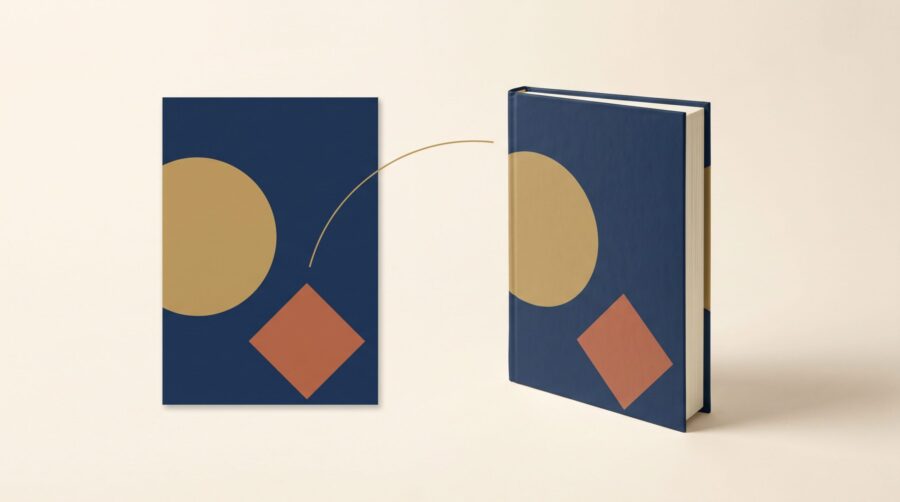
A 3D book mockup turns your flat cover design into a picture of a real-looking book for social media, ads, newsletters, and your website. To make one, upload your front cover as a JPG or PNG to a mockup generator such as DIY Book Covers, Canva, Book Brush, or Placeit; all four have free options.
- What Is a 3D Book Mockup?
- Which Cover File Do You Upload to a Mockup Generator?
- When Do You Need a Spine File, and Which Book Formats Can a Mockup Show?
- Which Free Book Mockup Generators Can You Try?
- Can You Use a Free Mockup in Ads and on Your Website?
- What Size Does Your Mockup Need for Each Platform?
- Frequently Asked Questions
What Is a 3D Book Mockup?
A 3D book mockup is a digital image that shows a cover design on a realistic, three-dimensional book: standing upright on a desk, lying on a table, held in a reader’s hands, or displayed on an e-reader screen. A mockup generator takes flat cover artwork and wraps it around a photographed or computer-rendered book shape, complete with lighting, shadows, and page edges. The result looks like a product photograph of a book that may not have been printed yet.
Authors use these images anywhere a flat cover would look thin: cover reveals, preorder announcements, Facebook and Instagram posts, Pinterest pins, email newsletters, author websites, and the image modules on an Amazon product page. Because the mockup shows a physical object rather than a rectangle of artwork, it helps readers picture the finished book. The same generators also produce ebook versions, with the cover shown on a tablet or e-reader instead of a printed book.
Which Cover File Do You Upload to a Mockup Generator?
The file a mockup generator needs is your flat front cover on its own, as a JPG or PNG. Almost every tool expects exactly this; the upload step on DIY Book Covers, for example, asks for “JPG OR PNG” and “Front only, spine if needed.” The file to avoid is the print-ready cover PDF, often called the wrap.
The wrap is a production file, not an image of your front cover. Print-on-demand platforms take the whole cover as one wide sheet containing the back cover, the spine, and the front cover, plus bleed: extra artwork around the outside edges that the printer trims away. KDP’s paperback cover specification, for example, requires exactly this as a single PDF with 0.125″ (3.2 mm) of bleed. A mockup template has one placeholder shaped like a front cover, so feeding it a wrap either squeezes all three panels into that one space or crops to the wrong part of the sheet. A quick way to tell which file you are holding: open it and look for the barcode. If you can see a barcode panel and the front cover side by side on one wide sheet, it is the wrap. (The wrap has its own strict rules, which we cover in why KDP rejects cover files; none of them apply to the mockup copy.)

A cover designer will be able to send you exactly the file you need. If you’ve created the cover yourself, you can extract the image from the full-cover wrap. Work on a duplicate of the PDF, never the print master. In Adobe Acrobat, use the Crop pages tool to drag a box around the front cover panel (the right-hand panel of the sheet). Apply the crop, then export the result as a JPG or PNG via File > Export a PDF > Image. Acrobat’s crop hides content instead of deleting it, which is why the duplicate matters: the trimmed-away panels are still in the file and can be restored by mistake. Export at full size rather than taking a screenshot, because a screenshot is capped at your screen’s resolution and throws away most of the detail your designer built into the file.
Ebook covers are simpler. An ebook cover is already a single front-only image (for example, KDP’s ideal ebook cover is a JPG or TIFF 2,560 pixels tall by 1,600 pixels wide), so it can go straight into an ebook-style mockup template with no extraction step.
When Do You Need a Spine File, and Which Book Formats Can a Mockup Show?
You only need a spine image when the template you picked shows a readable spine: an angled standing book, a stack, or a boxed set viewed from the side. Straight-on templates and ebook templates never need one. If your template does show the spine, crop the spine panel from the print-ready cover PDF the same way as the front panel (or ask your cover designer to provide the spine image).
The spine is also worth double-checking for accuracy, because its width depends on the page count and paper of the finished book. Page count also determines whether the spine can include text: KDP only prints spine text on books over 79 pages, and IngramSpark’s file requirements block spine text on paperback books under 48 pages. If your page count is still moving, hold off on any mockup that shows the spine until the interior is final; otherwise the mockup can show a spine the printed book will not have.
The binding style in the mockup should also match a book readers can actually buy. Print books come in three main forms: paperback, case-laminate hardcover (the artwork printed directly onto the rigid cover), and jacketed hardcover (a removable paper dust jacket wrapped around plain boards). Pick the template that matches the edition you actually sell; a mockup of a binding readers cannot buy advertises a product that does not exist.
Ebook mockups sidestep all of this. An ebook has no spine and no binding, so the template shows the cover on a tablet, phone, or e-reader screen. Pick a device-style template for the ebook edition rather than a printed-book template, so each graphic matches the format it promotes.
Which Free Book Mockup Generators Can You Try?
Four widely used book mockup generators cover most authors’ needs, and each works differently at the free level. One general note first: Canva spells out its free-tier rules, but the other services publish little about exact output sizes or watermarks for their free accounts (checked August 2026), so the reliable check is the download screen in your own account.
DIY Book Covers is a free, no-signup generator built specifically for authors. You pick a template (single books or multi-book composites), upload the front cover, optionally add a spine, and download the result as a JPG with a background or a PNG with a transparent background. The transparent PNG is the more flexible file, because you can place it over any scene in an image editor.
Canva Mockups is the mockup feature inside Canva; it replaced the standalone Smartmockups service, which closed on 27 September 2024. In the Canva editor, open Apps, choose Mockups, pick a book style (hardcover, paperback, square, or portrait), and drag your uploaded cover into the frame. Canva’s free plan covers up to 2,500 mockup uses, and free mockups export without a watermark; a watermark only appears if the design includes Pro elements (paid stock images and graphics from Canva’s library) you have not licensed.
Book Brush is an author-marketing image tool with a large mockup library: print books, e-readers, tablets, audiobook scenes, and transparent 3D books. It requires a free account, and its published free-tier allowance is unclear; Book Brush’s own pages currently state different figures (a plan page lists 15 free image downloads, while an older tutorial says three 3D images per month), so treat the in-account counter as the true limit.
Placeit is a subscription mockup service with a book category that includes lifestyle scenes: books in hands, on tables, and in styled settings. Downloads are PNG files ready for screen use. Some templates are free with an account, and the paid plan removes limits; the free selection rotates, so what is free this month may not be next month.
None of the four requires design software or a Photoshop licence. Which one fits best depends on the scene you want: DIY Book Covers for quick, clean composites; Canva for mockups inside a wider design workflow; Book Brush for author-specific scenes; Placeit for lifestyle photography.
Can You Use a Free Mockup in Ads and on Your Website?
Free book mockups can generally be used commercially, paid ads included: the major tools all permit it, though the details sit in each licence. DIY Book Covers publishes no separate licence document; its own tool page describes the mockups as made for social media, launch emails, and advertising campaigns. Canva’s content licence grants a perpetual licence for Free Content and a one-design licence for Pro Content, covering marketing and social media use. Book Brush’s free media licence allows commercial use in print and digital with no attribution required. Placeit’s licence permits publishing, broadcasting, and distributing what you create, including in paid ads. The common restriction across the three published licences is redistribution: you cannot resell the mockup images or templates themselves as stock.
The tool’s licence is only one of two rights layers in a mockup, however. The other is your own cover artwork, which carries whatever terms came with it: your agreement with the cover designer, the licences on any stock images used in the design, and the font licences. Those terms travel with the cover into every mockup you make. Marketing use is standard in professional cover agreements, but if your cover was made under a limited licence (some crowdsourced and template arrangements restrict advertising use), that restriction applies to the mockup too, because the mockup contains the cover. Checking the cover agreement once answers the question for every image you make afterwards.
What Size Does Your Mockup Need for Each Platform?
On screen, only pixel dimensions matter: the image’s width and height counted in pixels, such as 1,080 × 1,080. You do not need to worry about DPI (dots per inch) here the way you do for a print file: DPI only affects printed output, so a mockup labelled 72 DPI looks exactly the same on social media as one labelled 300 DPI. When you are checking whether an image is big enough for a platform, check the pixel count.
Each destination has its own recommended pixel size, taken here from the platforms’ own specifications:
| Destination | Recommended size | Ratio |
|---|---|---|
| Facebook Feed image ads | 1,440 × 1,800 px | 4:5 |
| Instagram Feed ads | 1,080 × 1,080 px minimum | 1:1 |
| Instagram and Facebook Stories | 1,080 × 1,920 px | 9:16 |
| Pinterest standard pins | 1,000 × 1,500 px | 2:3 |
| Amazon A+ Content | Module-specific, 135 × 135 px to 1,940 × 600 px | Varies by module |
Amazon A+ Content, the extra image-and-text sections an author can add to an Amazon product page, deserves the note in that last row: there is no single A+ size, because each of its 17 module types has its own dimensions (a header image is 970 × 600 px, an image-and-text-overlay module is 970 × 300 px with 1,940 × 600 px suggested, and quadrant images are 135 × 135 px each), all JPG or PNG under 3 MB. Our guide to KDP A+ Content walks through the modules themselves.
One quality check no sizing table captures: how large the cover actually appears inside the image. A 1,080 × 1,080 px post meets Instagram’s specification, but if the template shows the book angled on a desk, the visible cover might occupy only 300 pixels of height, and your title is being rendered from those 300 pixels no matter how large the file you uploaded was. After downloading a mockup, zoom to 100% and read the title and author name. If they are not comfortably legible at full size, choose a template where the book fills more of the frame.
A 3D book mockup costs nothing to make and gives every announcement, pin, and ad a finished product to show. The working sequence is short: get the flat front cover as a JPG or PNG (extracting it from the wrap PDF if needed), pick a template that matches the edition you actually sell, generate the image in any of the free tools, and check the pixel size and title legibility against the platform you are posting to. From there, the same source file serves your newsletter and website as readily as your social feeds.
Frequently Asked Questions
How do you make a 3D book mockup in Canva for free?
Open a design in Canva (https://www.canva.com/mockups/), choose Apps in the side panel, then Mockups, and pick a book style: hardcover, paperback, square, or portrait. Upload your flat front cover, drag it into the mockup frame, adjust the fit, and download. Canva’s free plan covers up to 2,500 mockup uses without a watermark, as long as the design uses no unlicensed Pro elements.
Do you need Photoshop to make a book mockup?
No, Photoshop is not needed to make a book mockup. Browser tools such as DIY Book Covers (https://diybookcovers.com/3Dmockups/) and Canva generate 3D book mockups with no design software at all. Photoshop only comes in for PSD templates (downloadable mockup files in Photoshop’s own format), which use a “smart object” layer: you paste your cover into that layer and the template bends it around the book shape. PSD templates offer more control over lighting and scenes, but for standard marketing images the browser generators produce comparable results.
Does the mockup template need to match your book’s trim size?
A mockup template needs to match your cover’s proportions, not its exact measurements. A 6″ × 9″ cover fits any standard portrait book template, and small differences in ratio pass unnoticed. The mismatch that shows is one of shape: a square children’s book dropped into a tall portrait template gets stretched or cropped. Pick a template whose book shape (portrait, square, or landscape) matches your trim size, the finished page dimensions of your printed book, and the proportions take care of themselves.
Can you make a mockup of your ebook?
Yes, you can make a mockup of your ebook: every major generator offers device templates that display your cover on a tablet, phone, or e-reader screen. Use your ebook cover file, which is already a single front-only image (KDP’s ideal, for example, is a JPG or TIFF 2,560 pixels tall by 1,600 pixels wide), so no extraction from a print file is needed. Device mockups have no spine and suit an ebook honestly, whereas showing a printed book advertises an edition the reader may not find.
Why does your book mockup look blurry on social media?
A blurry book mockup usually has one of three causes: the uploaded cover file was low resolution to begin with; the social platform compressed an oversized or wrongly proportioned image on upload; or the template shows the book so small or so steeply angled that the cover occupies only a few hundred pixels. Start from a full-resolution cover export, size the finished image to the platform’s recommended pixels, and zoom to 100% before posting to confirm the title reads clearly.
